
Google Is Changing How Tagging Works. What Does It Mean for GTM?

We keep inheriting containers that already have a Google tag and Google Tag Manager. One agency set up GA4. Another added Google Ads. Someone dropped in Meta. A developer added custom JavaScript. Call tracking arrived later. Then a workaround from three years ago that nobody will delete, because nobody remembers why it is there.
That is real-world GTM.
Google is now unifying the Google tag and Tag Manager. Google tags become fully capable GTM containers. Existing GTM users get a banner asking them to optimize. Visual tagging is in beta. Triggers and Variables are sliding under a menu called Advanced.
None of that is an emergency. Do not click Optimize on a production container because a banner asked you to.
Google can make the tools simpler. It cannot decide what your business should measure. We wrote the setup job in GTM in 2026 and the testing job in what to look for when a tag “fires”. This post is the judgment on the unification: what is actually changing, what to ignore, and what to test before you publish anything.
What Google is actually changing
For years the split was simple. The Google tag was the lighter install. GTM was the toolbox: tags, triggers, variables, preview, versions, templates.
That line is going away.
Google tags are being upgraded into GTM containers. Sites that only had the Google tag get interface-driven tagging, debugging, and version control. Google is not asking you to rip out a working implementation and start over. Existing configuration and automated event triggers stay. Each Google destination still gets its own tag.
This is not “GTM is dead.” It is Google putting two tagging products on the same infrastructure.
The new surface looks like a wizard. Open GTM and you can get Measure a purchase on your site: pick a Google Ads destination, a conversion action, a URL. Google offers to walk the checkout and build the tags.
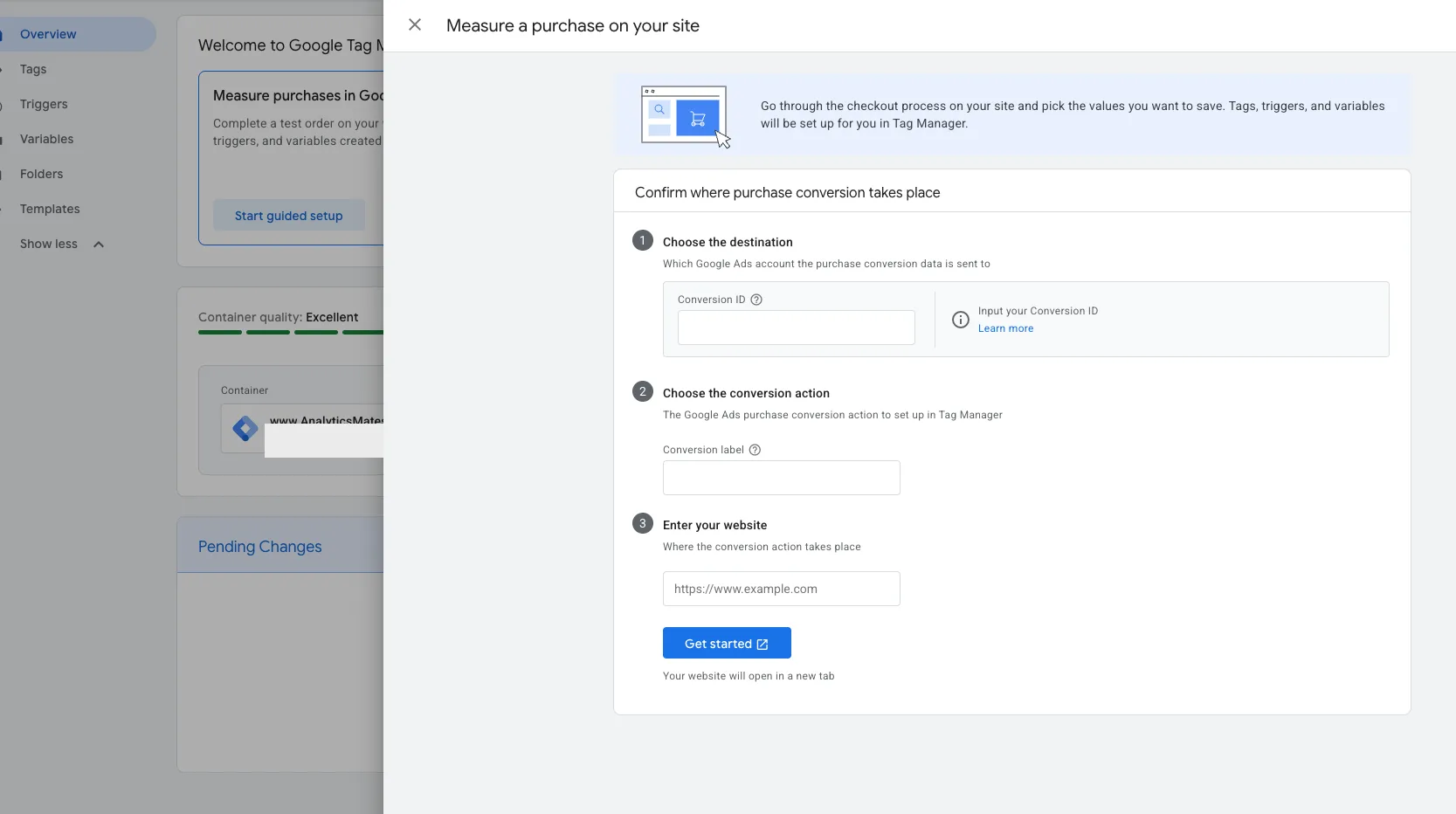
Most firms do not care whether a hit left through gtag.js or a GTM tag. They care that the conversion is real, and that GA4, Google Ads, and the CRM are not inventing three different stories. The hard part was never creating the tag. The hard part is knowing what should fire, when, where it should go, and whether the number at the end is one you would bid on.
A purchase wizard on a site that does not sell a cart is the tell. Guided setup is not the same as the right event.
Do not optimize just because Google says optimize
Whenever Google announces a tagging change, the first question is always the same: do we need to change anything?
For most existing GTM users: not today.
Google recommends optimizing existing containers. The change is not pushed live. You start the flow, review the proposed configuration, preview it, then decide whether to publish. That distinction is the whole safety rail. Use it.
We would not optimize a live container because a banner called the new setup “faster and easier.” On an established account there are dependencies you will not see in the summary: consent, a conversion tag another platform is watching, a custom HTML tag that writes a data layer event, a call-tracking script that only works because of the current load order.
We opened a production Versions list. Version 51 was live. 46 tags. 74 triggers. 11 variables. Published July 23, 2026. Most versions have no name. The ones that do: Bing webmaster verification. A naming cleanup. Homepage CTA tracking. Typeform.
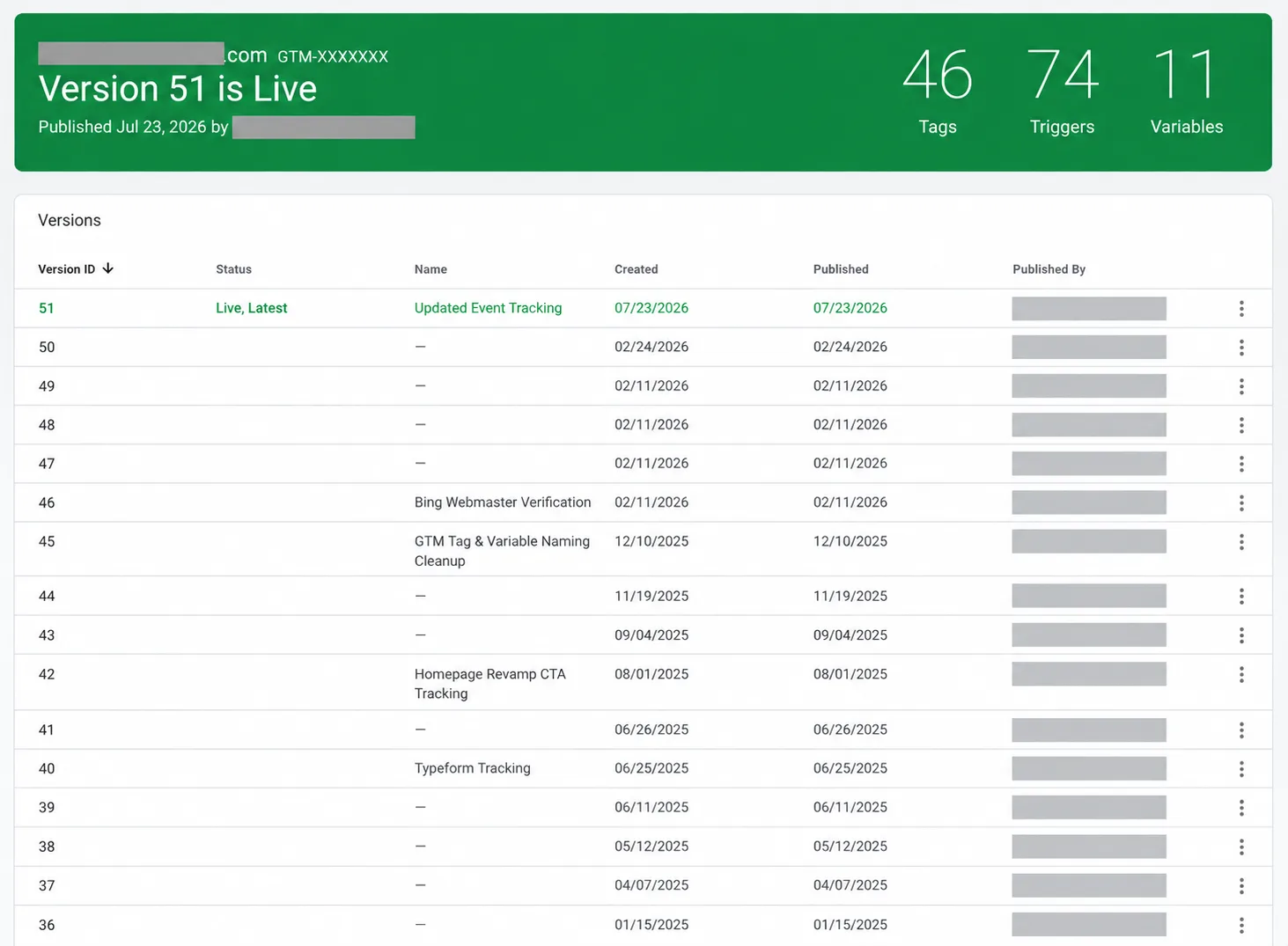
That is not a container you “optimize” from a banner. That is a container you read first.
Treat this like any other meaningful GTM change:
Review it. Preview it. Validate it. Then publish it.
And validation does not end at Tag Fired in Tag Assistant. Seeing a tag fire tells you the container did something. It does not tell you the event reached the right platform, carried the right parameters, or was recorded the way you think.
Ask the questions that pay:
- Did GA4 receive the event?
- Did Google Ads receive the conversion?
- Is Consent Mode still doing what you think it is doing?
- If you pass attribution into a CRM or call-tracking platform, is that path still intact?
Tag Fired is a checkpoint. It is not the finish line. We have watched a call-tracking tag fire on every page load and train Google Ads on 10,947 “conversions” from one user. The container looked fine. The business was not.
The interface is getting simpler. The job is not.
Container-wide configuration is moving into Settings. Triggers, Variables, Templates, and Folders are grouping under Advanced.
Nothing important is disappearing. Google is hiding the parts that scare a first-time user. If you live in Tags / Triggers / Variables, that is an extra click. You will survive.
What it tells you is the product direction: put the simple path on the surface, keep the real controls underneath. That is fine for a new property. It is a problem if someone treats “Advanced” as optional on a container that already has custom HTML, a consent CMP, and three ad platforms.
Under the hood: fewer gtag.js hops
Previously, GTM could load extra gtag.js JavaScript when sending data to a Google destination. An optimized container can send that data directly. Less intermediary script. Less measurement latency. Google’s words.
I opened ours. Chrome DevTools, Network, filter gtag. AnalyticsMates.com is still requesting googletagmanager.com/gtag/js — a 307, then the script. That hop is the thing Google says optimization can skip.
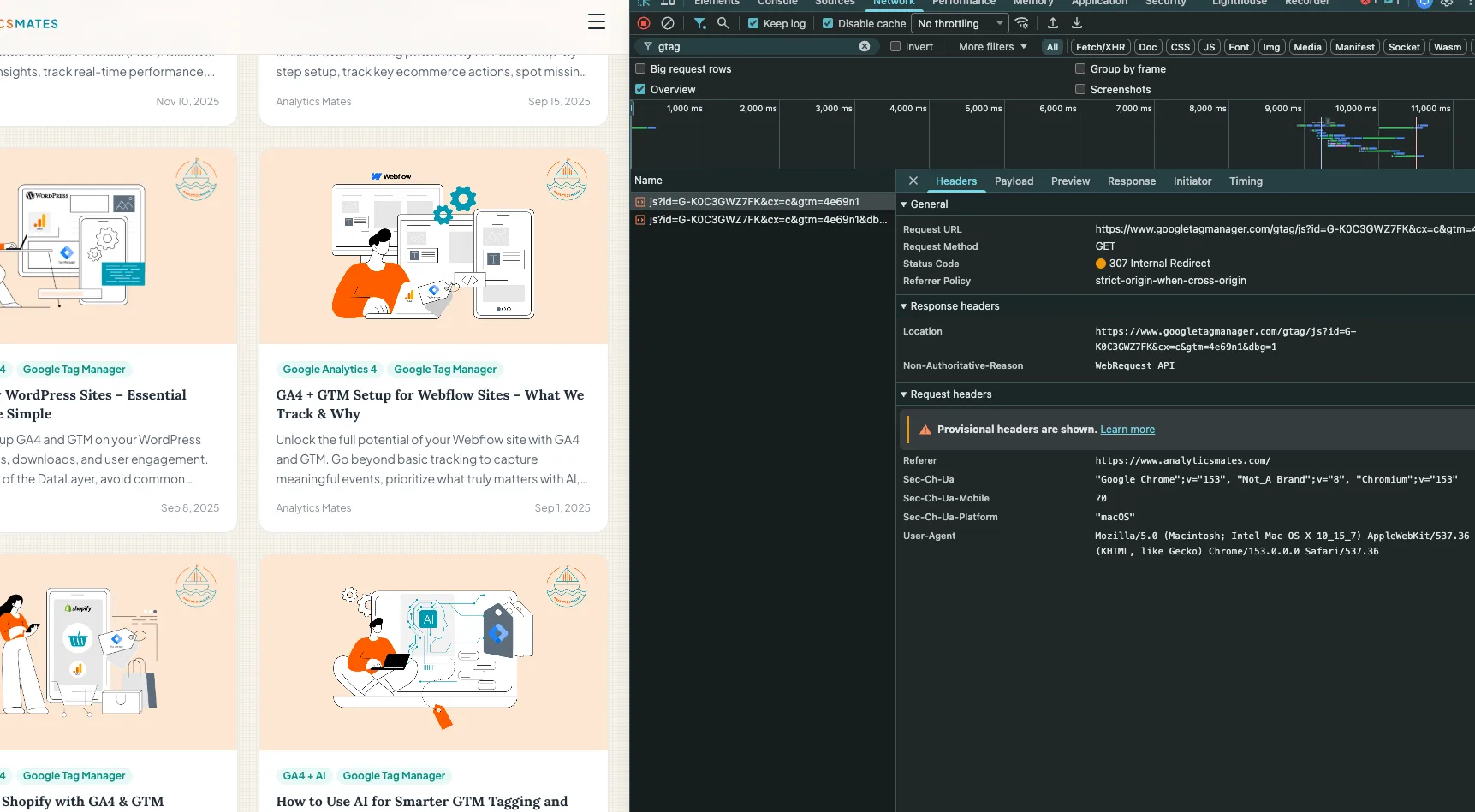
We like the direction. We will not sell it as a site-speed project.
In audits, GTM is rarely the heaviest thing on the page. Ads pixels, heatmaps, chat, personalization, call tracking — those sit next to it. Cleaning the measurement layer is still worth doing. It will not turn a slow site into a fast one.
Fewer moving parts do give you fewer places for a conversion to die. That is the actual win.
Initialization is changing. Older containers will feel it.
New deployment snippets are being standardized. They will no longer include the gtag config command. Google wants initialization through the gtm init trigger. Legacy setups are not being abandoned. You can still wait for the old config command if you have to.
Most marketers can skip this paragraph. If you are maintaining a container you did not build — especially one with a custom boot sequence or a CMP that races the first hit — read it twice before you publish an optimization.
Those are the afternoons that turn a “small update” into a missing purchase event.
The Settings map might be the most useful part
Google is putting container-wide Google tag settings in one place, and showing how the container, the Google tags, and the destinations connect.
That sounds small until you inherit someone else’s GTM.
The first question in an audit is basic: what is this container actually sending data to? On a clean implementation, a few minutes. On a container that has passed through three agencies and an internal marketing team, you open tags, hunt measurement IDs, find Google Ads destinations in two places, then discover a Universal Analytics tag nobody removed.
We have seen it.
I opened ours. Container quality: Excellent. Container www.AnalyticsMates.com → Google tag AnalyticsMates.com Website Tag → one analytics destination. Clean map. That is what you want to see before you touch Optimize. If the map is a mess, the banner is not your next click.
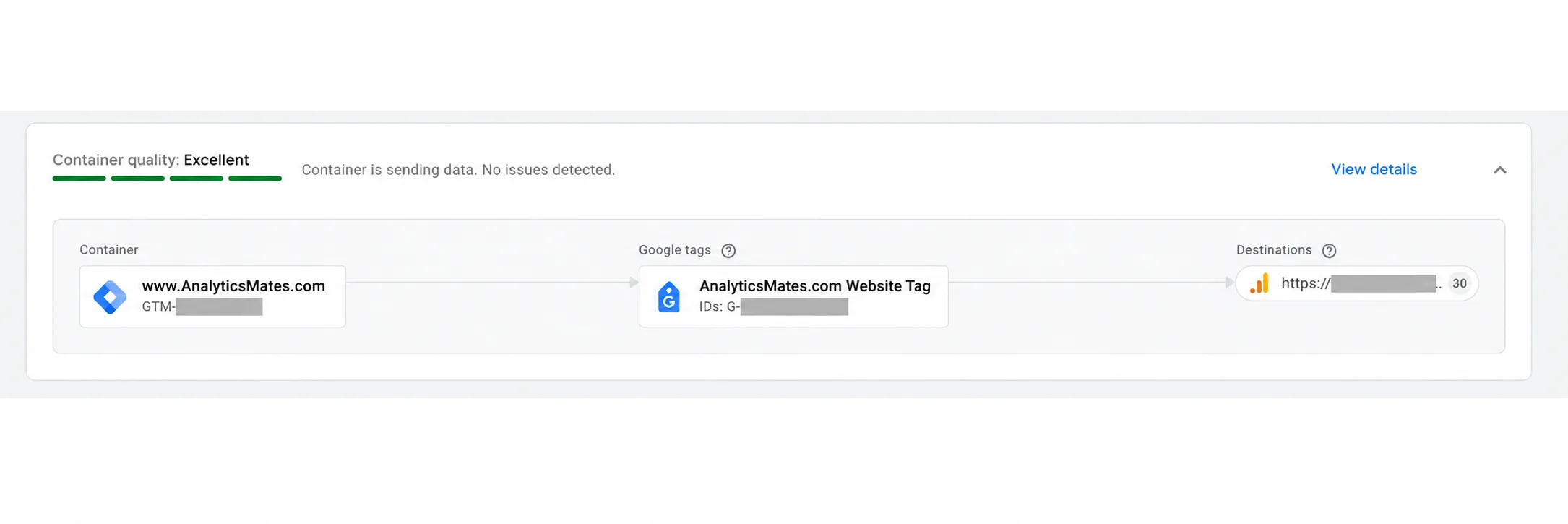
A destination map will not fix a messy container. It will shorten the time it takes to see it.
Visual tagging: easier is not more accurate
This is the feature to watch. Visual tagging lets you click elements on the site and have Google build more of the configuration. It is in beta, and right now it is aimed at purchase conversions in Google Ads. It is not replacing a designed GTM implementation tomorrow.
The direction is obvious. GTM was supposed to be the no-code alternative to asking a developer to hardcode every change. Then you learned Tags. Then Triggers. Then Variables. Then CSS selectors. Then someone mentioned the data layer. “No-code” stopped being no-code.
We ran the flow on AnalyticsMates.com. Tag Assistant opened Set up purchase conversions over our homepage. Prerequisites: an order confirmation page, a GTM container on the page, edit access, a credit card for a test order.
We are not an ecommerce store. The wizard does not know that. It will still walk you through a test purchase if you let it.
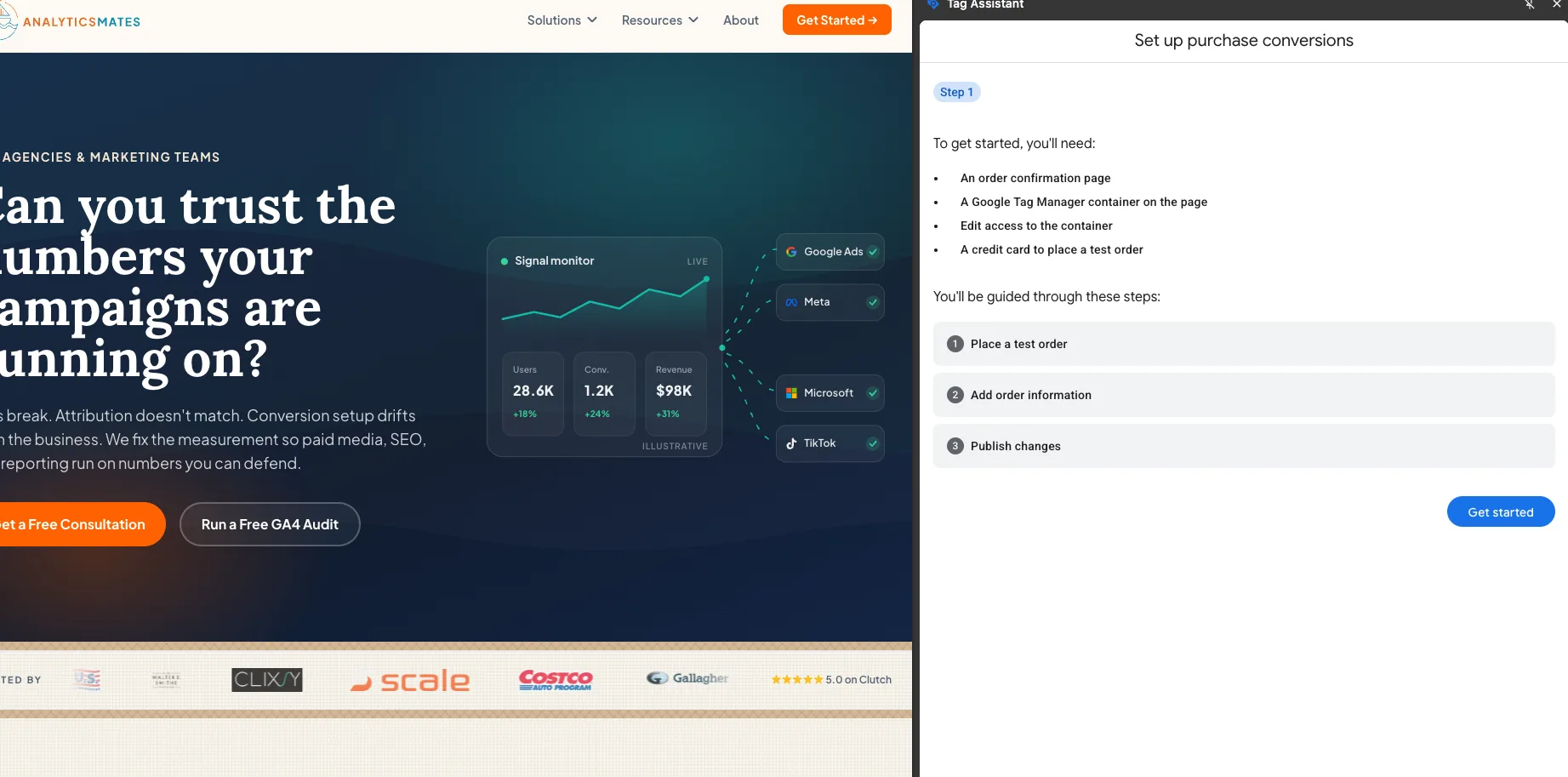
For a simple click, visual tagging will save time. Use it when the interaction is obvious from the page.
Do not use it as the system of record for:
- Dynamic forms
- Single-page apps
- Ecommerce data layers
- Consent-gated events
- Anything you will have to explain six months later when it stops firing
- A “purchase” on a site that does not have a cart
When a conversion breaks, we still need to know why it was supposed to fire. A point-and-click event with no documented trigger is how a container becomes folklore.
What to do this week
- Look for the banner. Do not publish it. If Optimize is available, open the proposed changes. Read them. Close the tab if you need to. Nothing should go live from curiosity.
- Write down the events that pay you. Lead form. Booked call. Purchase. The Google Ads conversion that is Primary. Those are the tests. Not “all tags fired.”
- If you have both a Google tag and GTM, do not delete either. Audit what each one is doing. You may have a real split. You may have been double-counting for a year.
- Preview, then follow the hit. Tag Assistant, then GA4 DebugView / Realtime, then the Ads conversion action, then consent. If a CRM or call platform is in the chain, open that record too.
- Leave visual tagging in beta until the event is boring. A purchase click on a stable product page is a candidate. Your lead form is not.
I previewed ours. Tag Assistant: connected to AnalyticsMates.com. Google tags found. Tags fired: GA4 Config, Crazy Egg, ActiveCampaign, Microsoft Clarity, a few custom HTML tags (pricing elements, Typeform consultation). 39 tags did not fire. That is normal on a homepage. It is also why “the container loaded” is not a test.
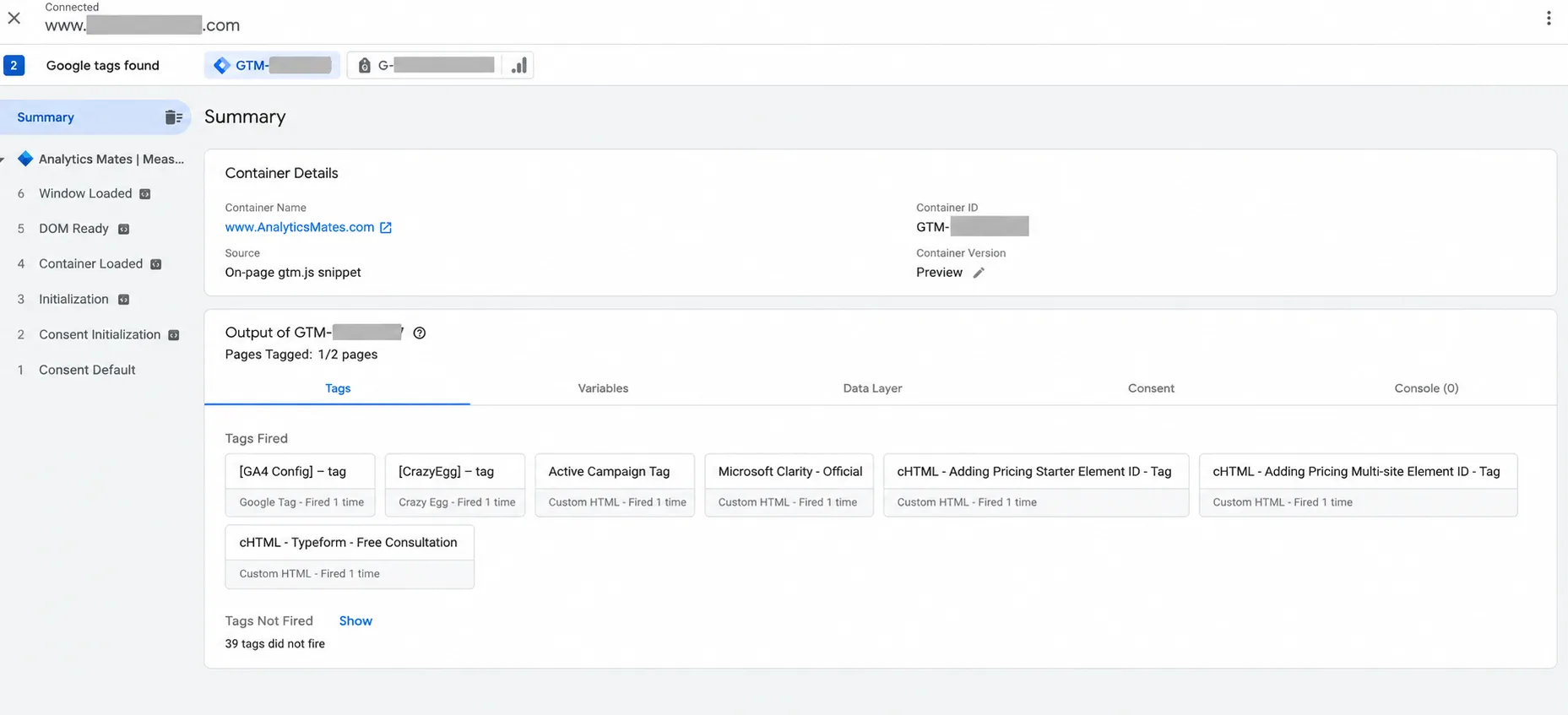
If you fix only one thing: do not treat Tag Fired as proof the implementation still works.
Questions we are already getting
Will existing GTM tags stop working? No rebuild is required because of the unification. If you do optimize, test the events that matter. Do not assume the new path is identical.
Do I need to optimize immediately? No. Existing containers are not auto-optimized. Review first.
We already have the Google tag and GTM. Leave both until you know what each one does. Duplicate measurement is common. Blind deletion is how a conversion disappears on a Friday.
Could this affect Consent Mode? The unification is not a Consent Mode rebuild. Any change to initialization or how data reaches Google destinations belongs on the consent test list.
Will the site get faster? Maybe at the tagging layer. Keep expectations honest. Other third-party scripts often weigh more.
Can visual tagging replace triggers? For simple interactions, eventually some of them. For anything with a data layer, consent, or a multi-step form, we still want a designed trigger.
What should an agency check across clients? Do not roll out one response. Older containers, custom HTML, Consent Mode, ecommerce, CRM joins, and call tracking need more testing than a clean GA4-only property.
Easier tagging is useful. Better data is still the goal.
It is easy to file this as another UI update. A Settings page. A cleaner Overview. An Optimize button.
The bigger story is the destination. Google is making measurement easier to configure on the surface and pulling the Google tag and GTM into one stack underneath. Over time, “we have the Google tag” versus “we use GTM” will matter less.
That is fine.
What does not change: you still need to know what you collect, why, where it goes, and whether you can trust it. Google can make tagging easier. It cannot tell you which conversion should train Smart Bidding.
If the Optimize banner is sitting on a container you care about, do not click Accept and move on. See what is changing. Test it against the measurement that actually pays. Then make the call.
If you want that review as an operation — destinations, consent, and the events that train ads — start with GA4 & GTM Support or book a consultation.
Keep reading
- How to Grant Analytics Mates Access to Your Marketing and Analytics Platforms
One guide for granting Analytics Mates access across GA4, Google Tag Manager, Google Tag, Search Console, Bing Webmaster Tools, Microsoft Advertising, Google Ads, and Meta. Use the in-page links to jump to the platform you need.
- GA4 Measurement Protocol: Tracking Offline Conversions and Backend Events
Learn how GA4 Measurement Protocol extends tracking beyond your website by sending offline conversions, CRM updates, and backend events directly to Google Analytics. Discover when to use it, how it works, and why it helps you measure what really drives business results.
- What Small Law Firms Should Actually Be Tracking in GA4
Most small law firms don’t have a traffic problem - they have a tracking problem. Learn the GA4, GTM, attribution, and conversion tracking issues we keep finding in law firm audits, plus what firms should actually track to improve reporting and marketing decisions.
Work with us
Need this done for your property?
Analytics Mates handles GA4 setup, GTM implementation, Looker Studio dashboards, and the ongoing measurement operations that agencies and in-house teams don't have bandwidth for.