
How to Grant Analytics Mates Access to Your Marketing and Analytics Platforms

To review and fix your measurement, we need access to the platforms that hold the signal — not only Google Analytics 4.
Use the emails we sent you. For Google properties that is typically data@analyticsmates.com plus any named teammates. Bing Webmaster Tools and Microsoft Advertising need a Microsoft account. Use the address we sent for those. A Google login will not work there.
You already have to be able to manage users in each platform. If you cannot add a user, we cannot do this from a Viewer seat.
If you are unsure which permission to pick, use the recommended level in that section and tell us. We would rather have the access we need than guess.
Completing one section does not grant the others. GA4, GTM, Google Tag, Search Console, and the ad platforms are separate invitations.
Jump to a platform: GA4 · GTM · Google Tag · Search Console · Bing Webmaster Tools · Microsoft Advertising · Google Ads · Meta
Google Analytics 4 (GA4)
Property-level access is the usual choice. It limits us to the property we are supporting. Account-level access applies to every property in that Analytics account. Do not grant account-level unless we asked for it.
-
Sign in to Google Analytics and select the correct account and GA4 property.
-
Click Admin in the lower-left corner.
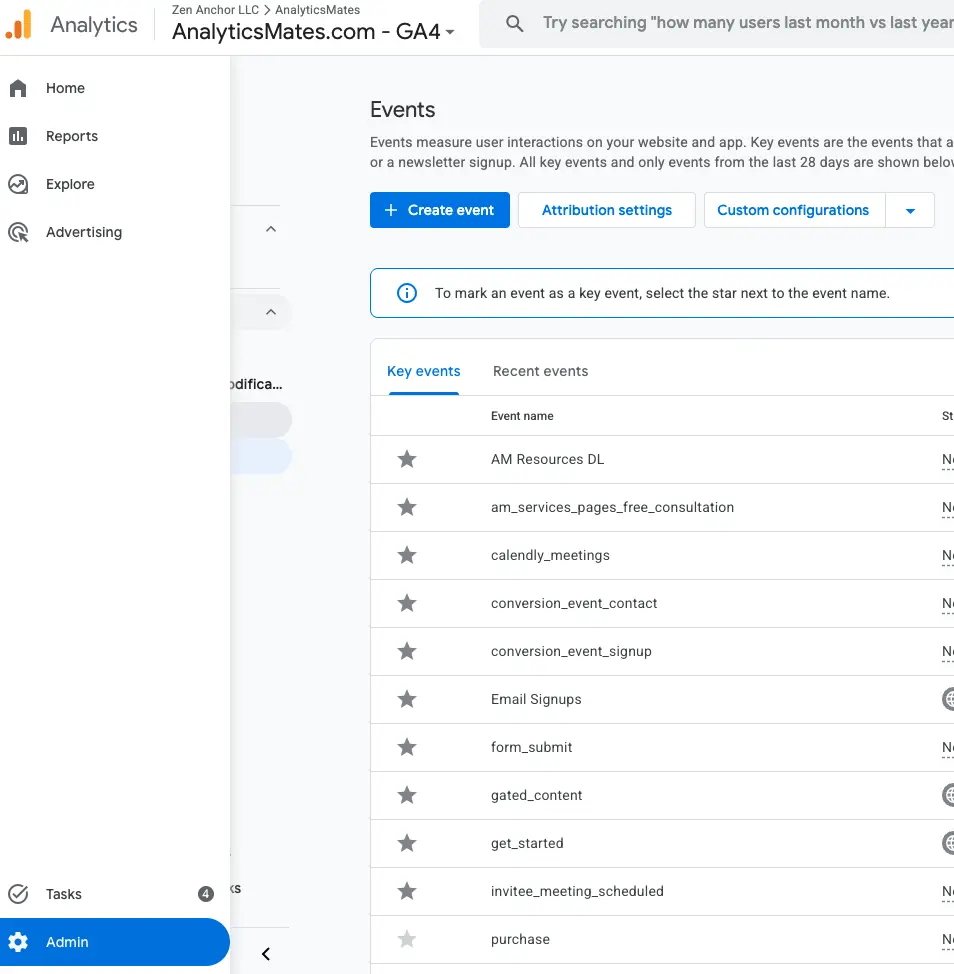
- Under Property, click Property access management. Use Account access management only if we should see every property in the account.
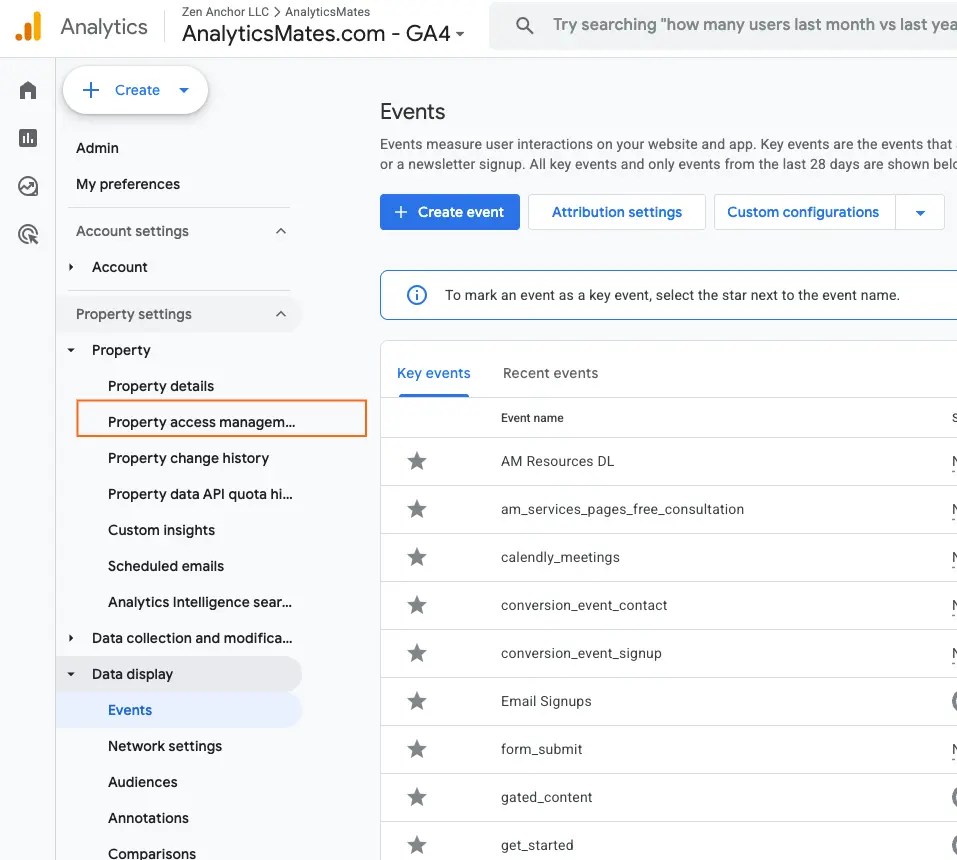
- Click the + button in the upper-right, then Add users.
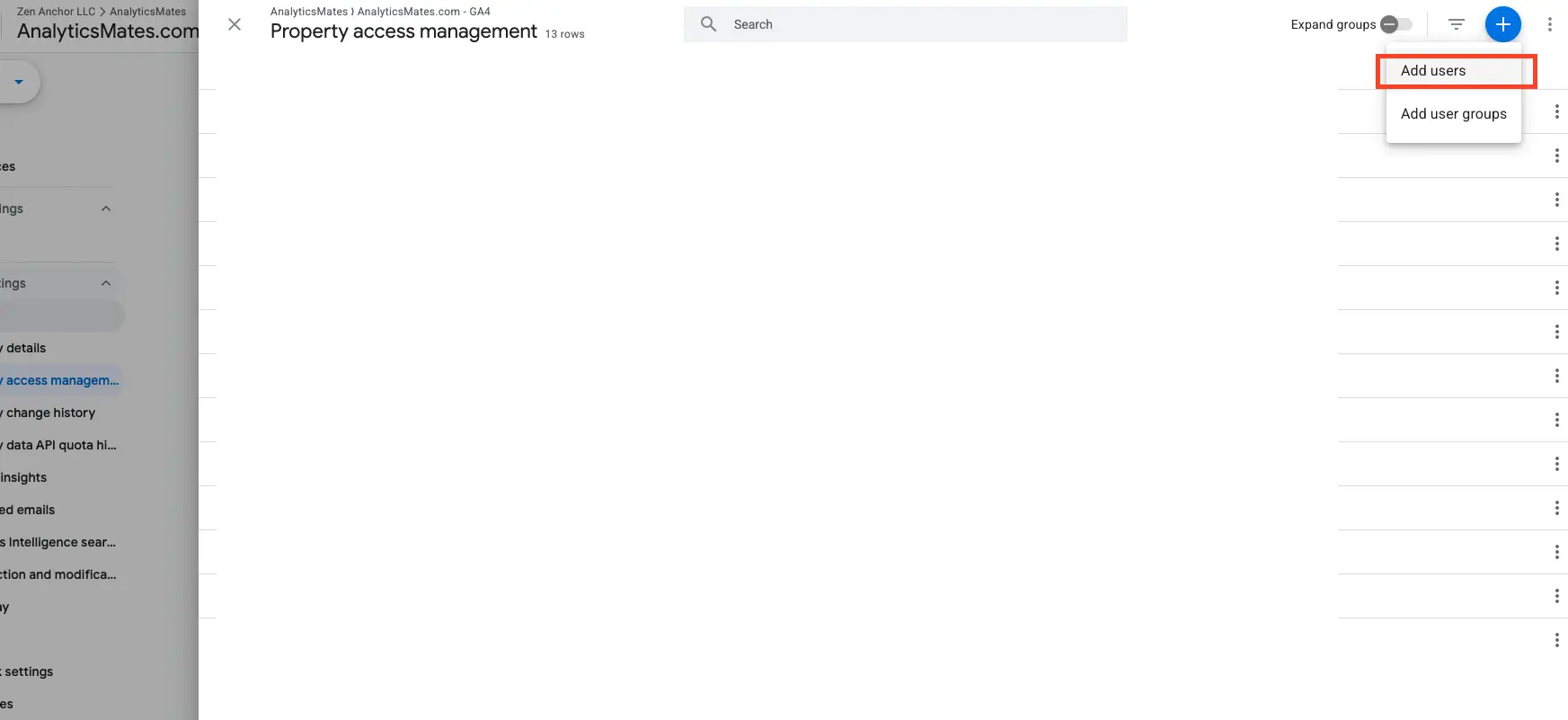
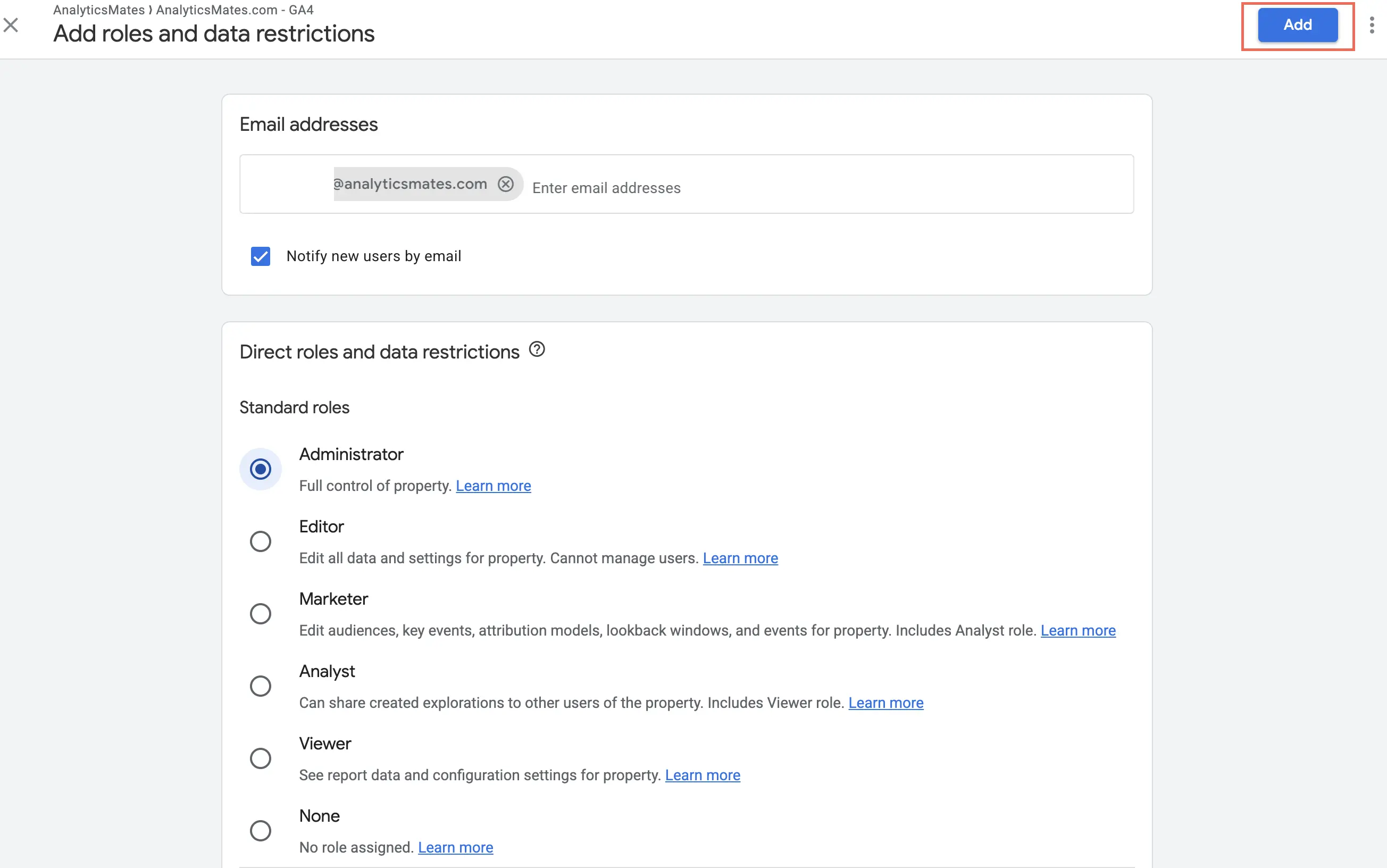
- Enter the Analytics Mates email addresses we sent. Leave Notify new users by email selected.
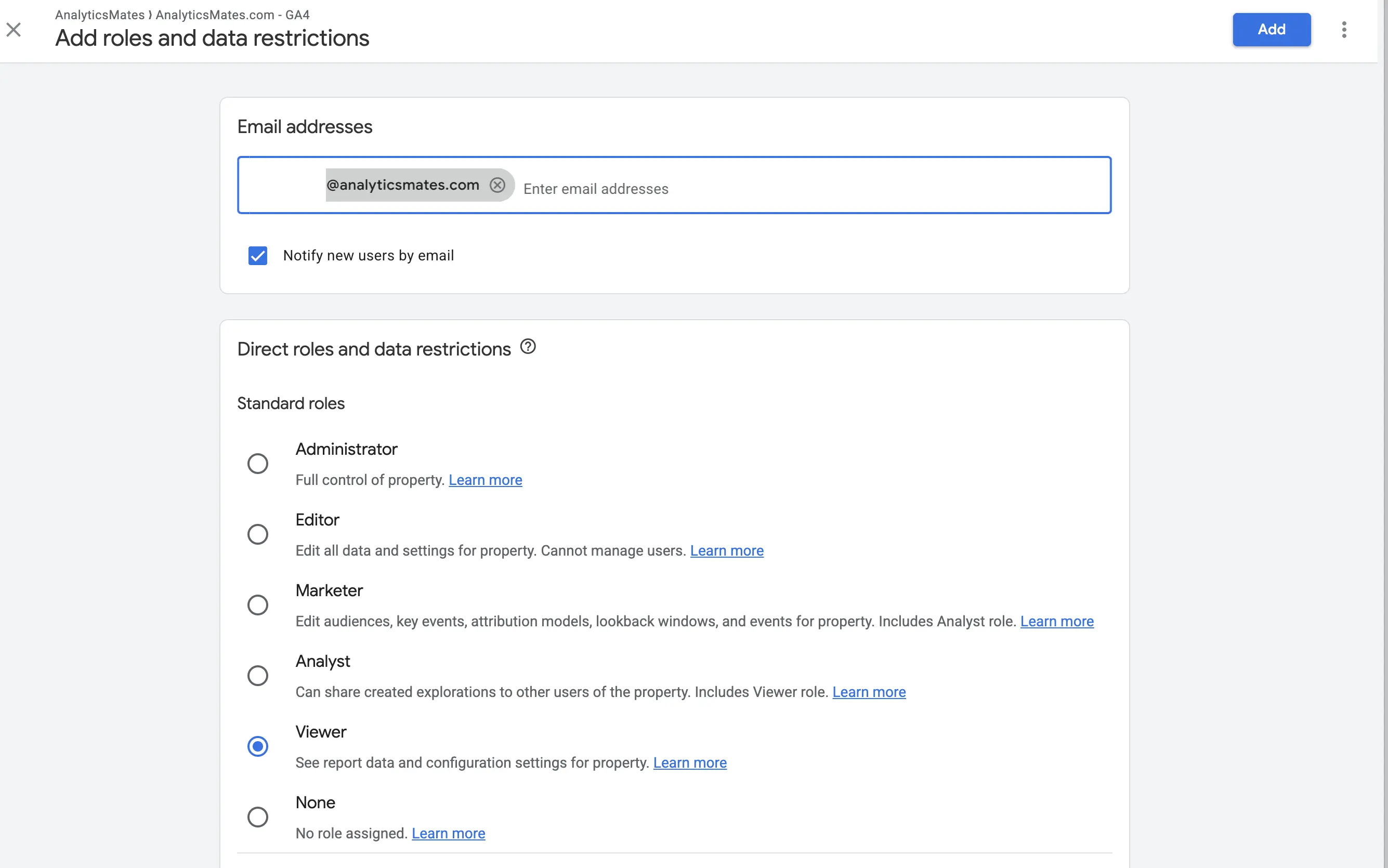
- Assign the role.
Recommended access: Editor at the property level for implementation and troubleshooting. Grant Administrator only when we also need to manage users, destinations, or other admin settings — and only after we have confirmed that with you. Do not apply revenue or cost-metric restrictions unless the project requires them.
- Review the emails and permissions, then click Add.
Google Tag Manager (GTM)
GTM is where the tracking actually lives. Most measurement issues originate here, not inside GA4. GTM permissions are separate from GA4.
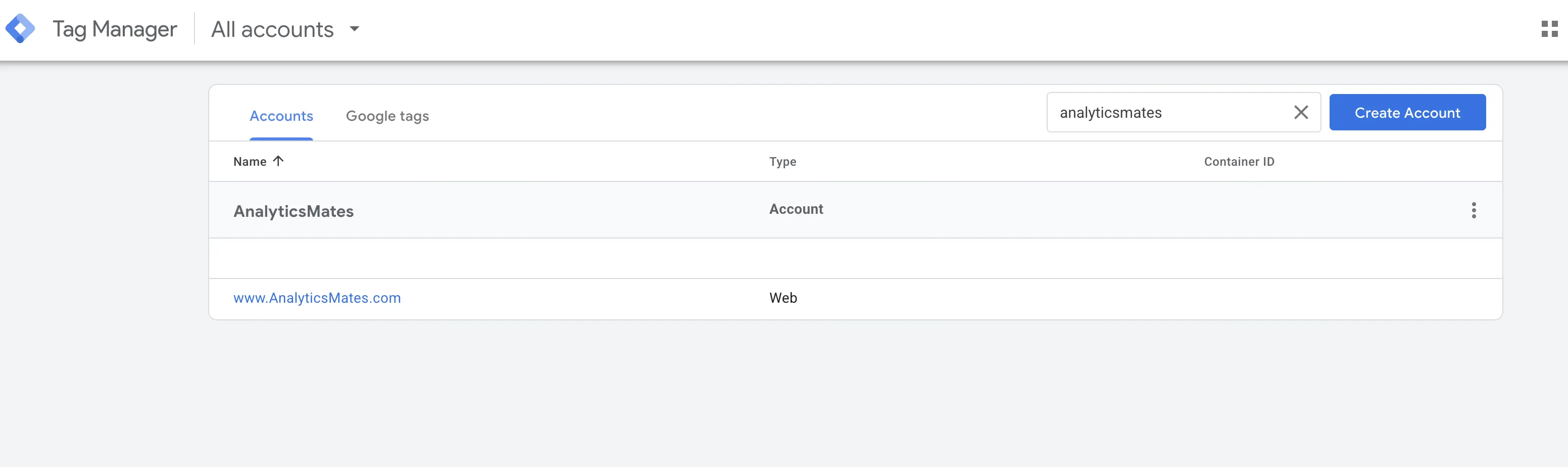
- Sign in to Google Tag Manager and open the correct account and web container.
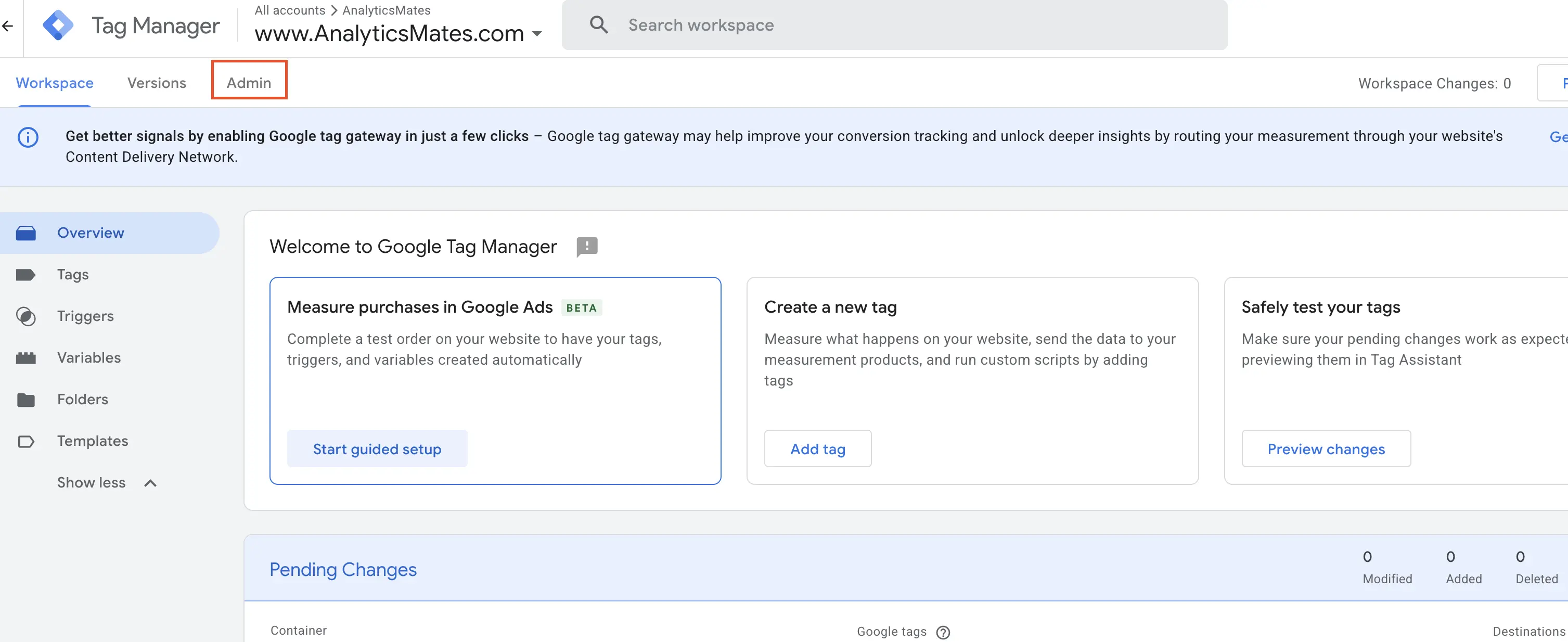
- Click Admin.
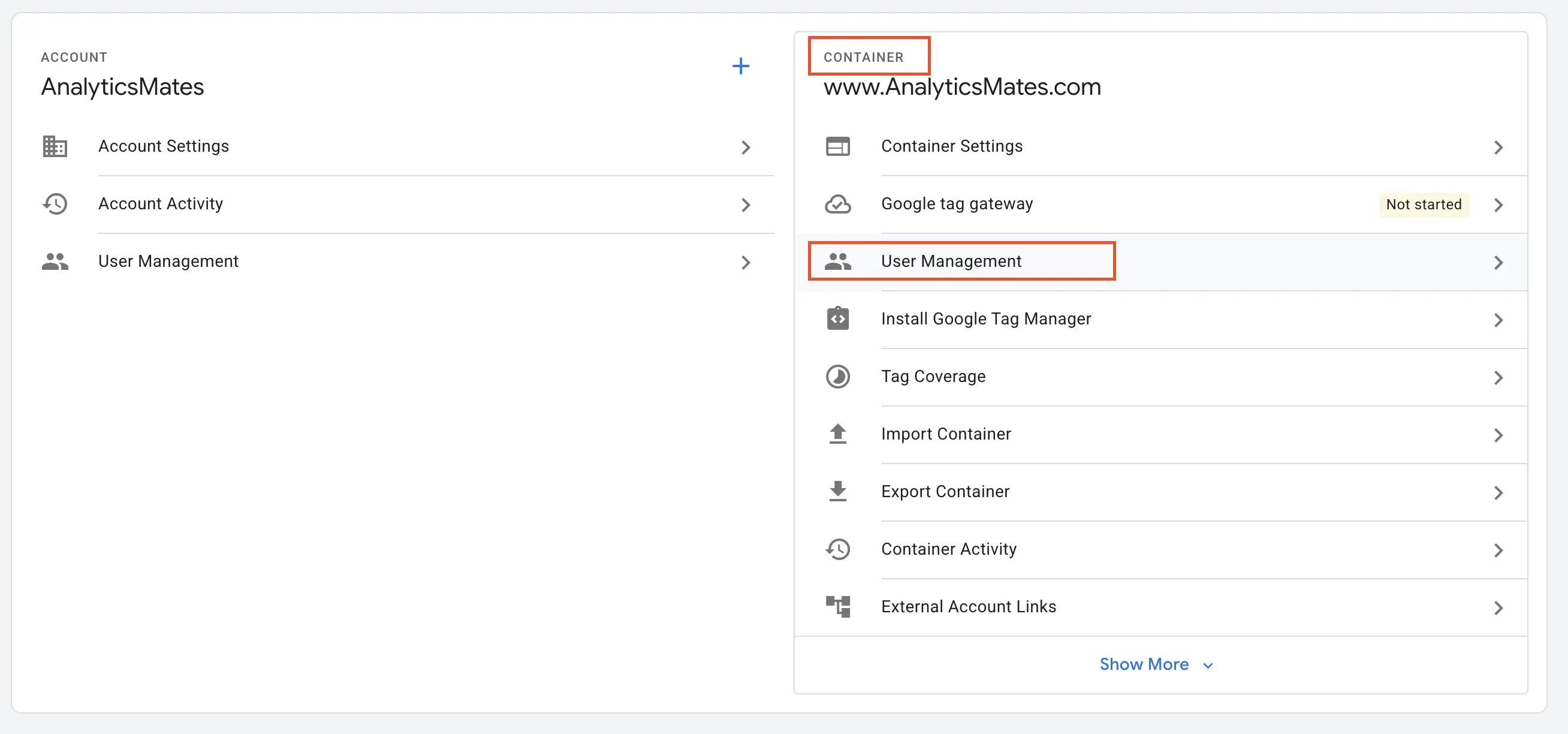
- In the Container column, click User Management. That limits the invite to this container. Use User Management in the Account column only if we need the whole GTM account.
- Click +, then Add users.
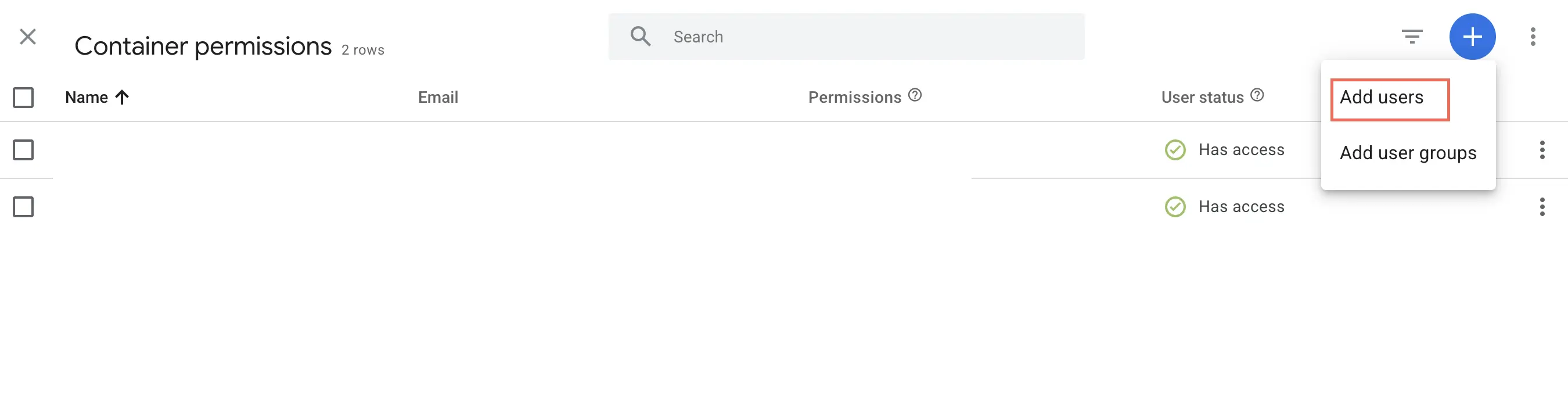
-
Enter the Analytics Mates email addresses we sent.
-
Assign container permissions.
Recommended access: Publish when we are implementing, testing, and publishing. Read when the engagement is an audit only. If your team must approve every release, use Edit or Approve and tell us so we know we cannot ship.
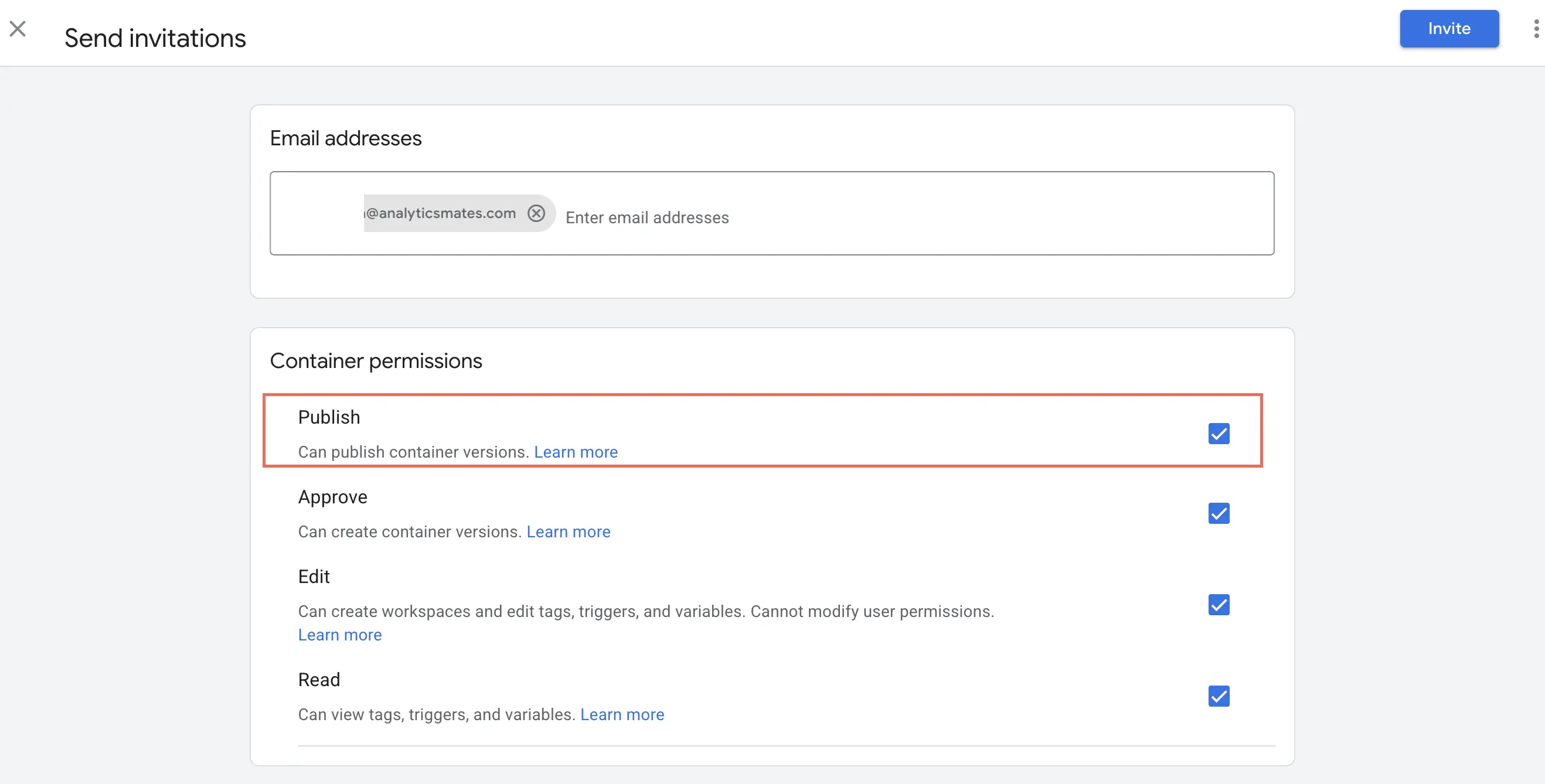
- Click Invite. The user shows as pending until we accept.
Google Tag
Even after GA4 and GTM, Google Tag access is often missed. Some tag settings stay locked without it.
The Google tag is the measurement tag on your GA4 web data stream. Its user list is related to GA4, but it is not always the same list.
-
In the correct GA4 property, open Admin.
-
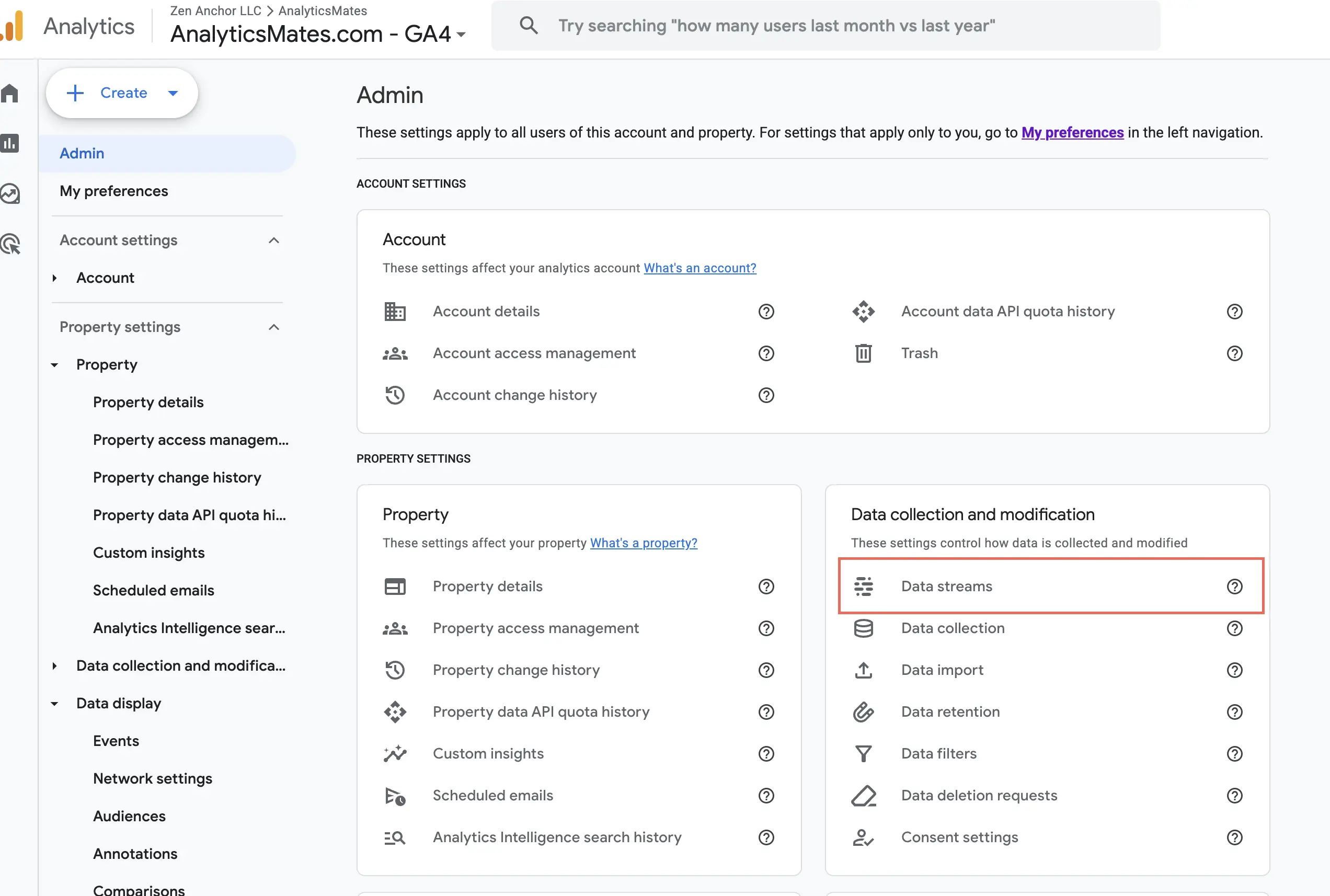
Under Data collection and modification, click Data streams.
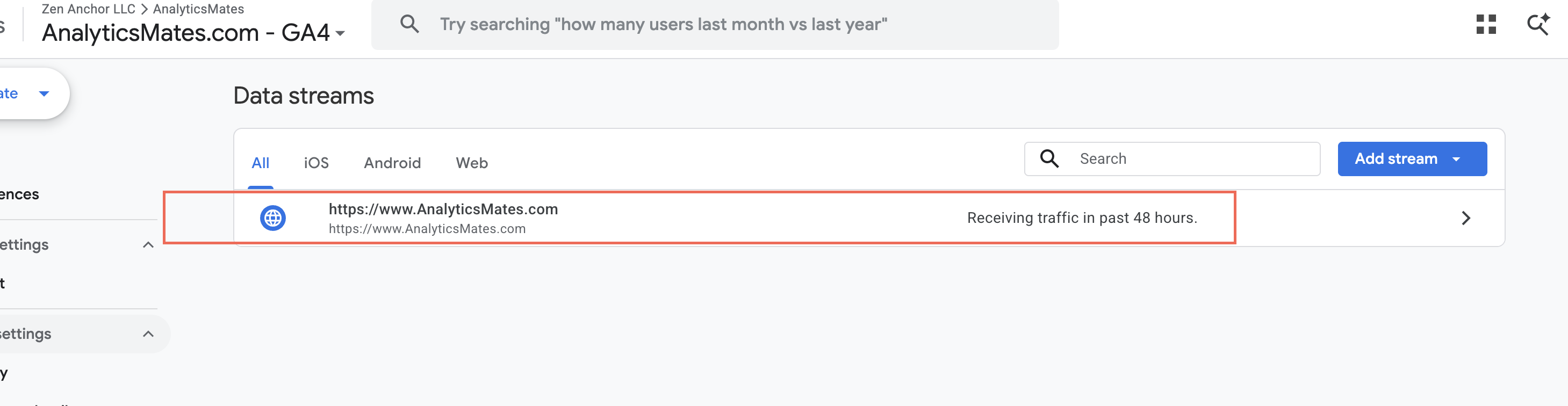
- Click the web data stream for the website.
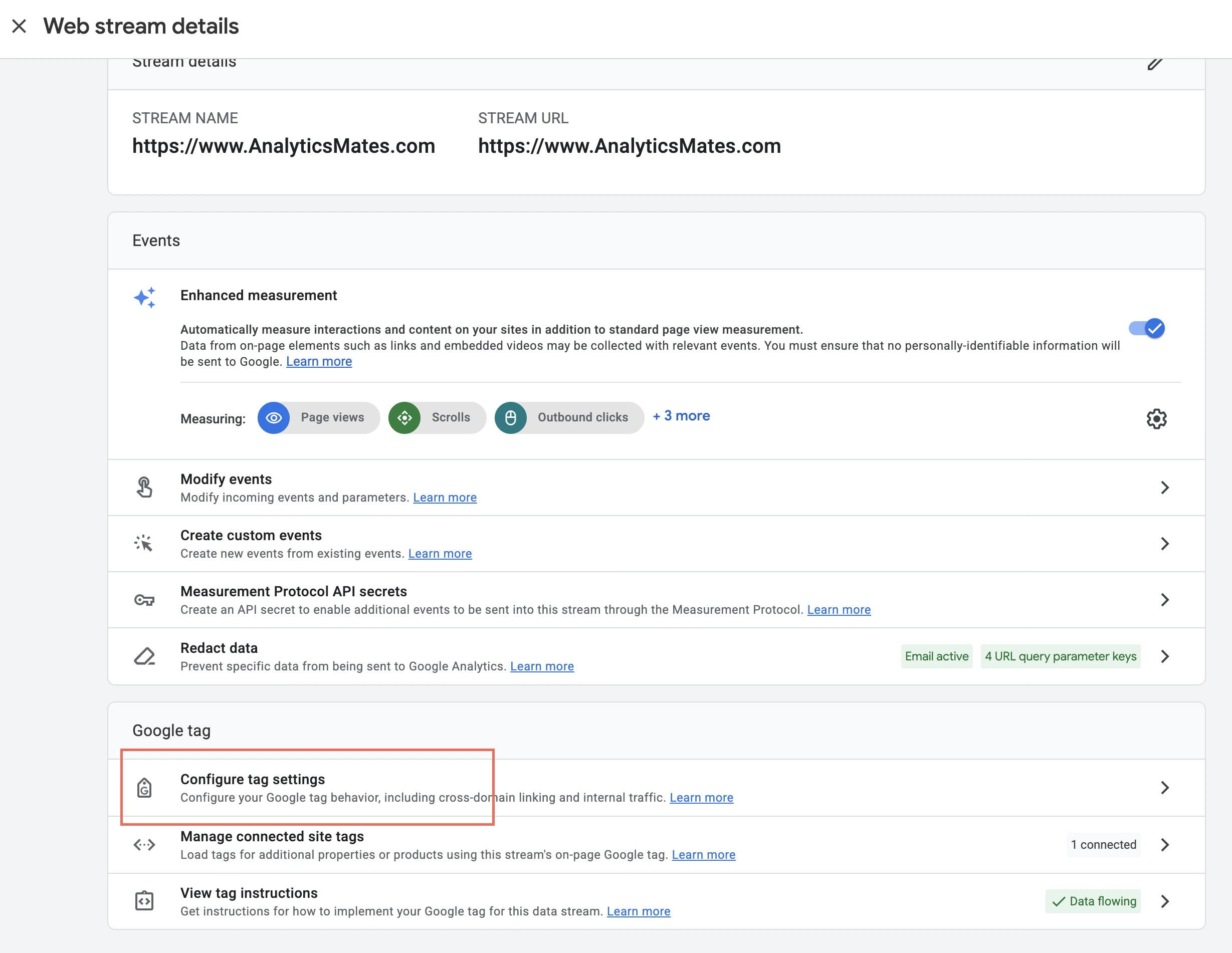
- Under Google tag, click Configure tag settings.
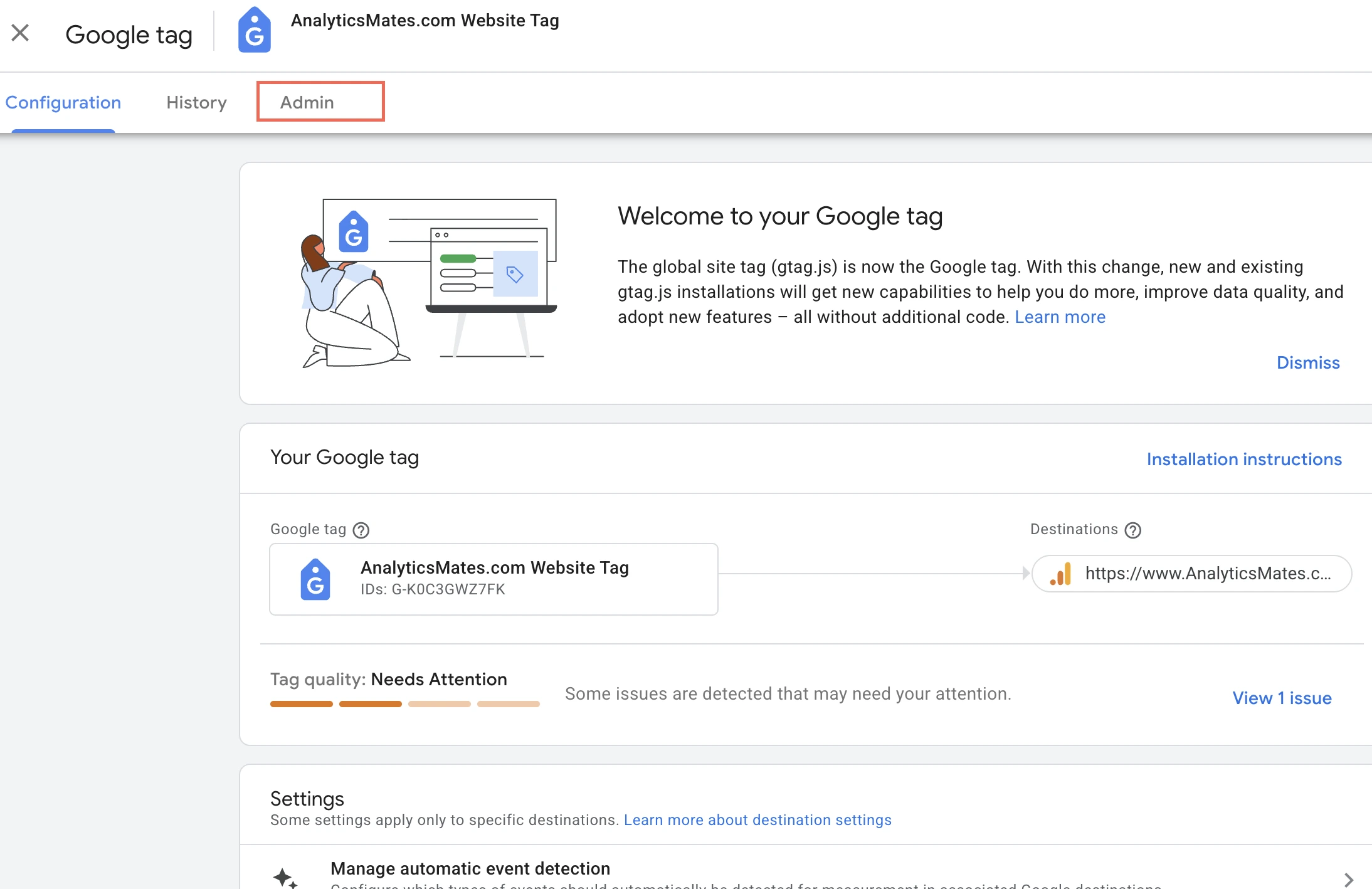
- At the top of the Google tag screen, click Admin.
- Click Choose who can administer this tag or Choose who can edit this tag’s settings.
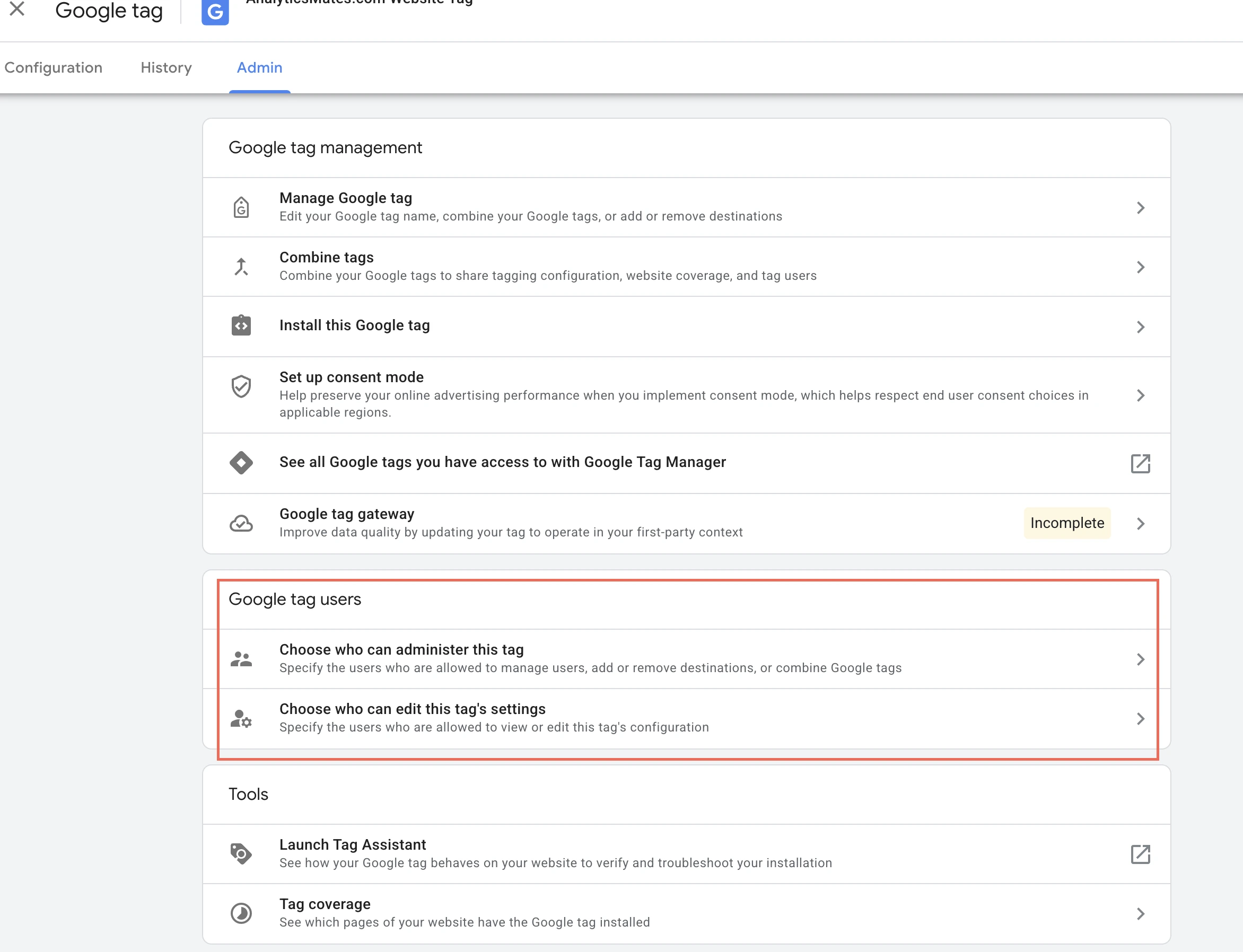
- If direct invitations are available, add the emails we sent.
Recommended access: Admin when we need full control of the tag. Edit / Publish when we only need to change tag configuration.
If you do not see a direct-invite option: a Google tag with a single destination (one GA4 web stream) inherits access from the GA4 property role. In that case there is nothing extra to invite.
- GA4 Administrator inherits Google tag Administrator and Publish.
- GA4 Editor inherits User and Publish.
- GA4 Analyst or Viewer inherits Read.
Direct user adds show up when the Google tag has multiple destinations, and they require Google tag Administrator access.
Google Search Console
Search Console access is per property. Add us on the property that matches the site we are working on — the domain property if you have one, otherwise the URL-prefix property. You must be an Owner to add another user.
-
Sign in to Google Search Console and select the correct property.
-
Click Settings at the bottom of the left navigation.
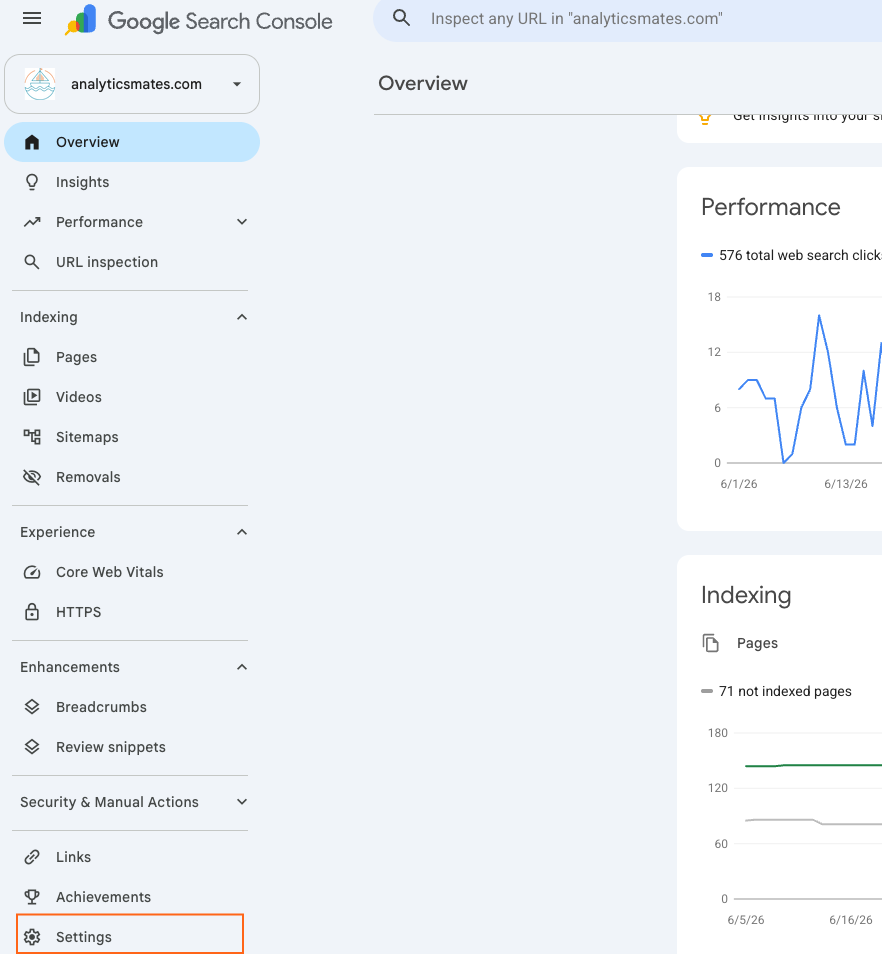
- Under General settings, click Users and permissions.
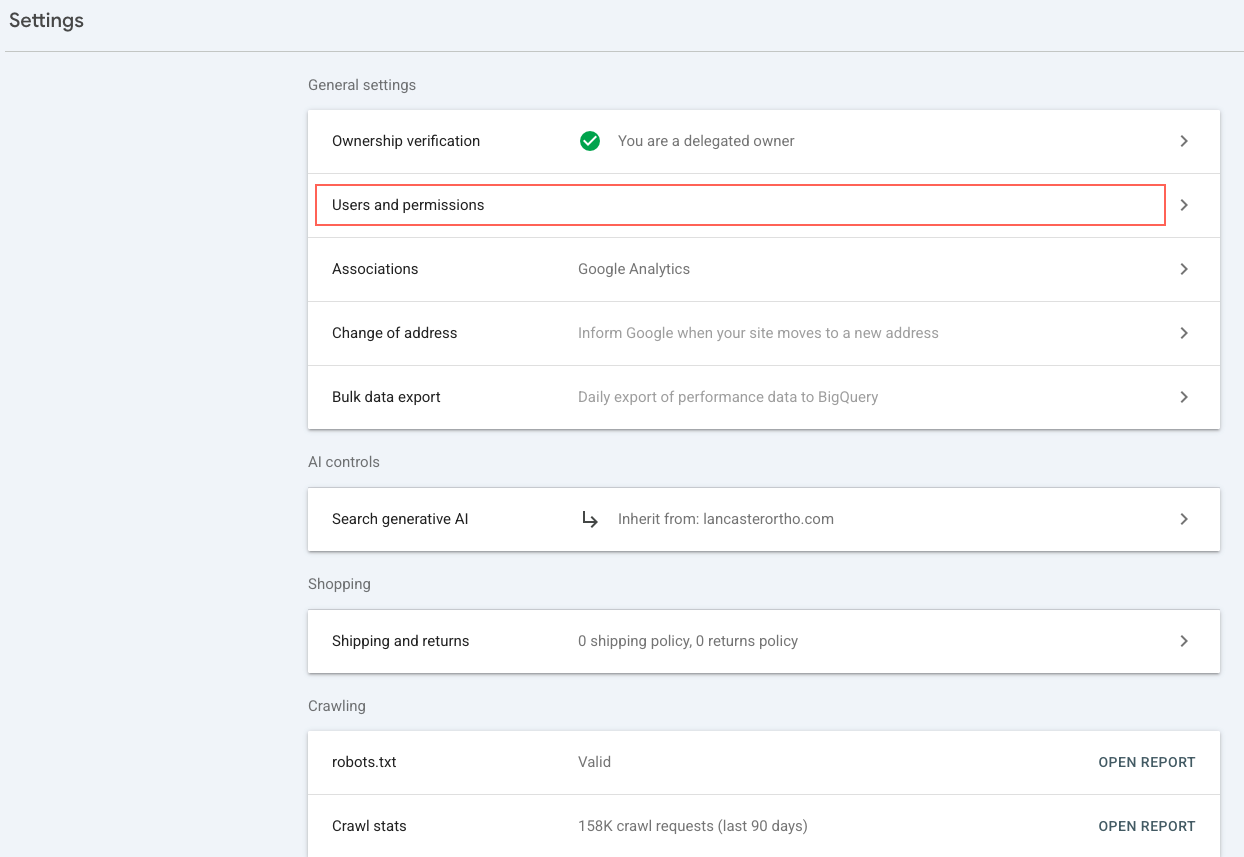
- Click Add user.
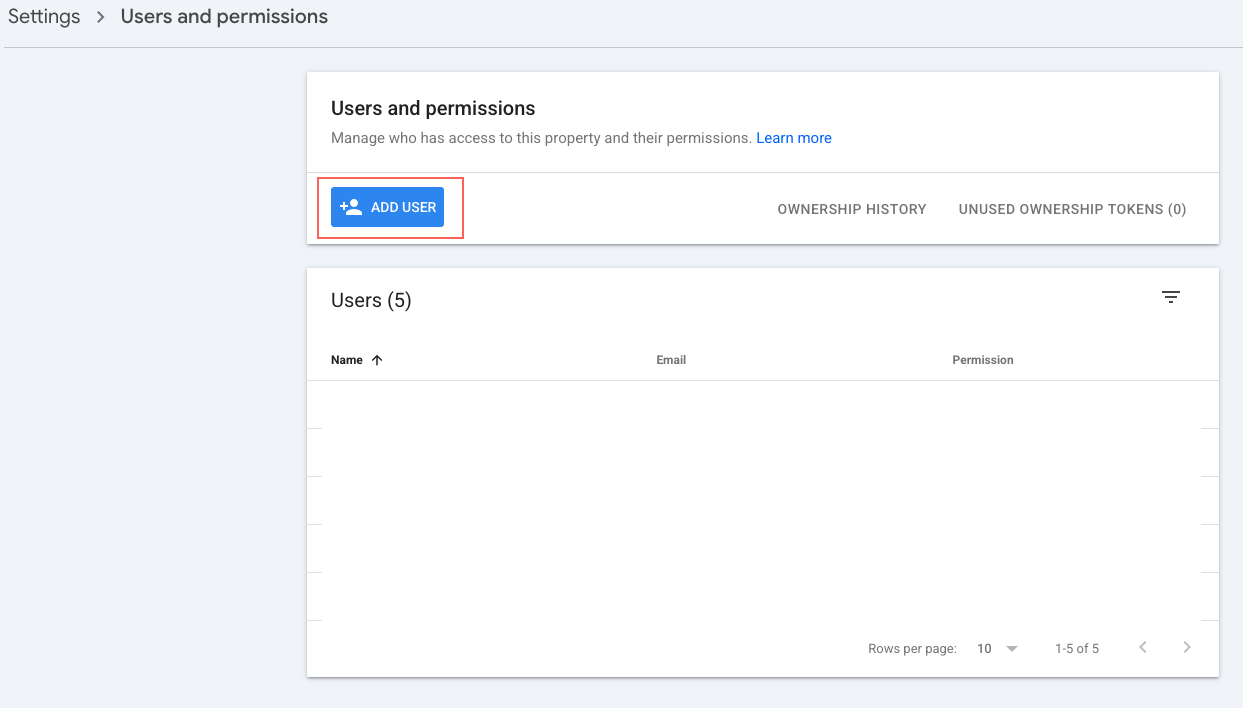
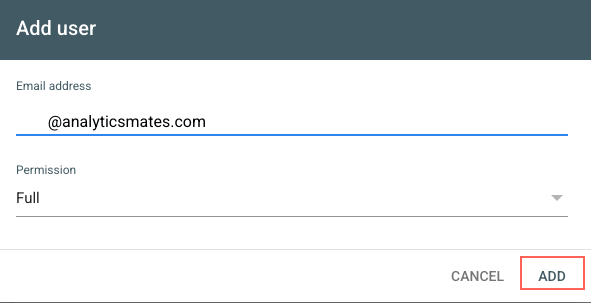
- Enter the Analytics Mates Google email we sent.
Recommended access: Full for SEO analysis, URL Inspection, sitemap work, and indexing. Keep your organization as the verified owner. Grant Owner only if we must manage users or ownership, and only after we have confirmed that. Restricted is reporting-only — not enough for an audit.
- Click Add.
Bing Webmaster Tools
Bing Webmaster Tools is a separate product from Google Search Console. It needs a Microsoft account.
-
Sign in at bing.com/webmasters and select the correct website.
-
Open Settings, then User Management. Depending on the UI, User Management may also sit in the main navigation.
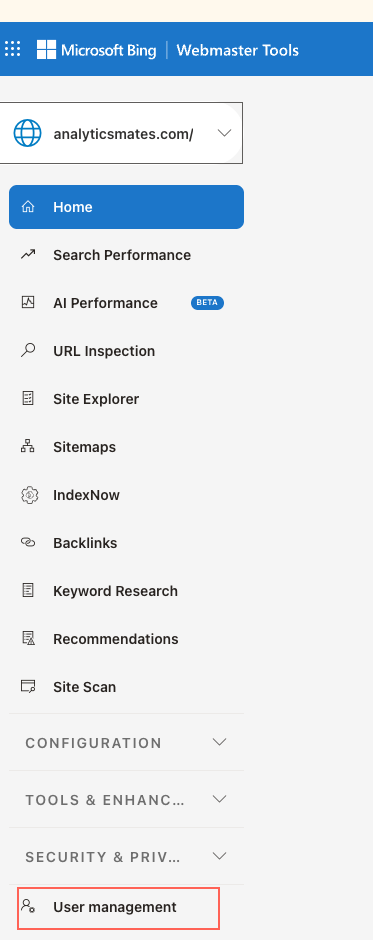
- Click Add User.
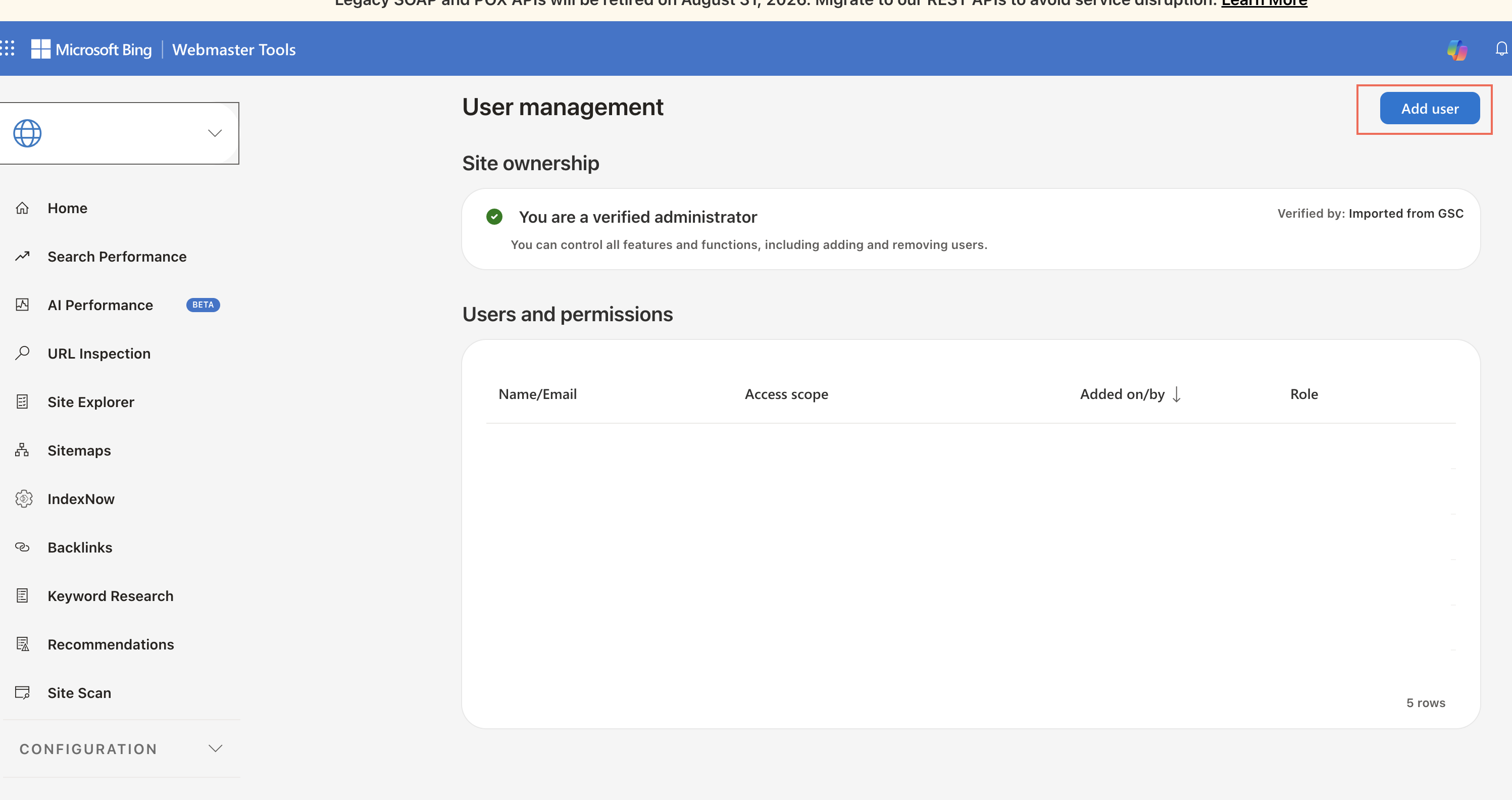
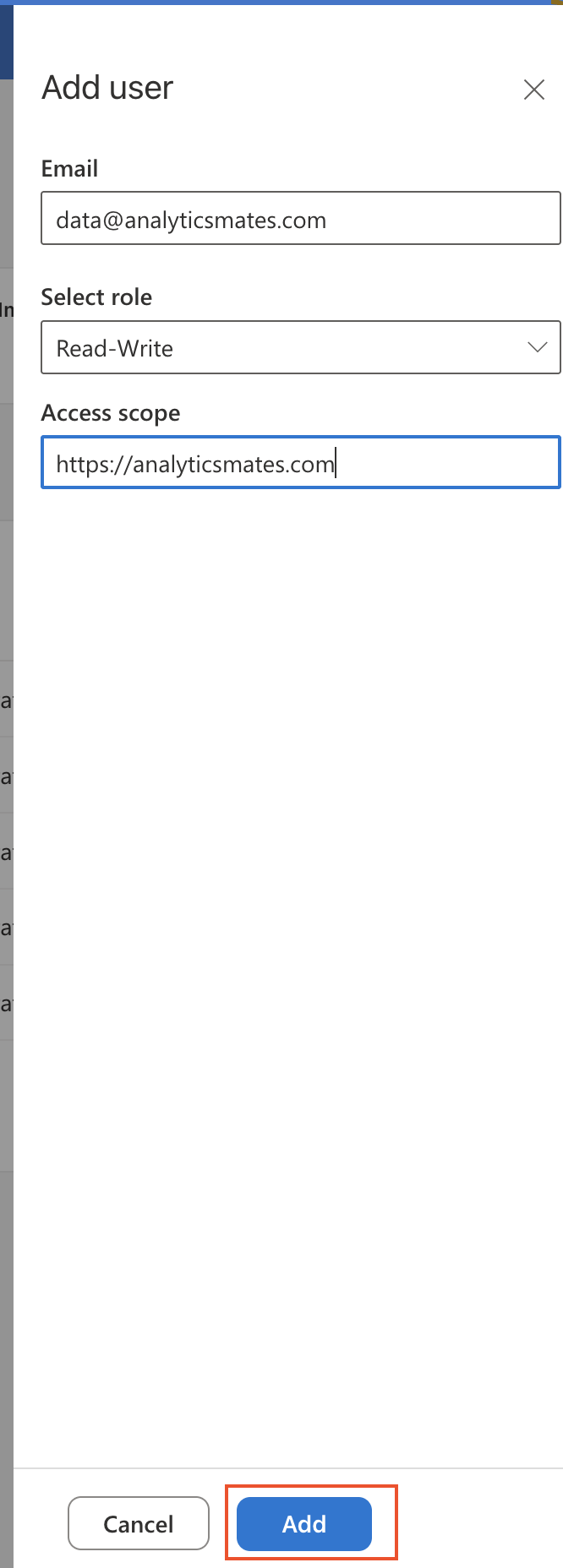
- Enter the Microsoft account email we sent. Select the website or websites we should see.
Recommended access: Read/Write for ongoing SEO support and diagnostics (sitemaps, site-level tools). Read Only for a reporting-only engagement. Administrator only when we must manage other users or finish administrative setup.
- Click Add or Save. Tell us once it is done so we can confirm the correct site appears.
Microsoft Advertising
Microsoft Advertising (formerly Bing Ads) is a separate access list from Bing Webmaster Tools. Grant only the advertiser accounts in the engagement.
-
Sign in at ads.microsoft.com and open the correct manager or advertiser account.
-
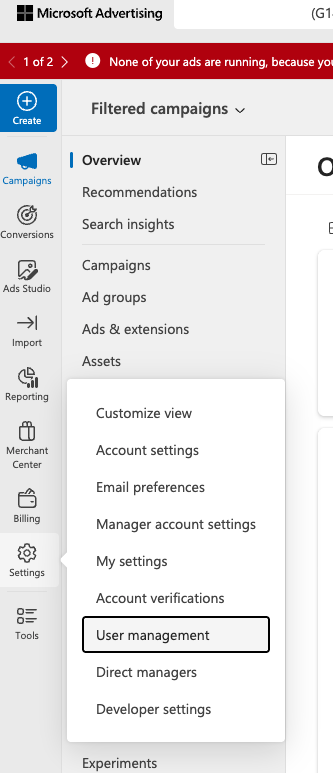
From the left navigation, open Settings → User management.
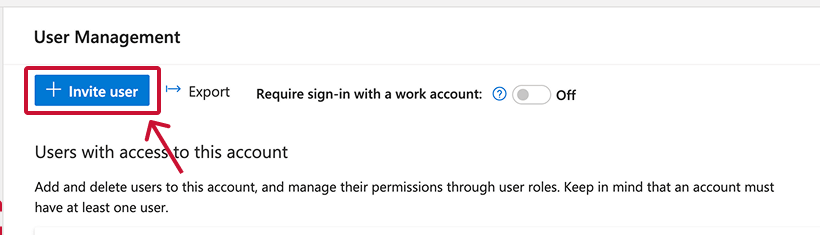
- Select Invite user.
-
Enter the first name, last name, and Microsoft email we sent.
-
Choose the account scope: all accounts under the manager, or only the advertiser accounts in the project.
Recommended access: Advertiser Campaign Manager for day-to-day work in selected accounts, or Viewer for an audit. If we must configure UET tags, conversion goals, account linking, or shared assets, tell us before you grant Standard User or Super Admin — those are the roles that can change tracking.
- Select Send invitation. Access is live after we accept.
Alternative: we may send a Microsoft Advertising manager-account number and ask you to link the advertiser account instead of inviting a person. Your Super Admin has to accept that link. You keep ownership of the advertiser account.
Google Ads
Add us to the customer account that runs the campaigns, not only a manager account we cannot drill into.
There is no screenshot pack for this section. The path is: Admin → Access and security.
- In Google Ads, go to Admin → Access and security.
- Invite the Google email we sent.
- Grant Admin, or Standard if Admin is not allowed — tell us, so we know the conversion-action limitation.
- If spend or conversions live under a manager (MCC), add us there too so we can switch accounts.
Recommended access: Admin, or Standard with access to conversion actions and Data Manager. Viewer is not enough if we are diagnosing conversion imports or linking.
If we are implementing offline conversion import, we also need permission to create or edit conversion actions and to see Data Manager. UI access to campaigns alone is not the same thing.
Meta Business Manager
Meta Business Manager is now a Business Portfolio in Meta Business Suite. Pixel events and Conversions API events land on a dataset. Add us as a partner so you keep ownership and we only get the assets in the engagement.
Before you start: we will send our Business Portfolio ID and which assets we need. You need full control of your company’s Business Portfolio to add a partner.
-
Go to business.facebook.com and select the correct Business Portfolio.
-
Open All tools, then Business settings (you may need More business settings).
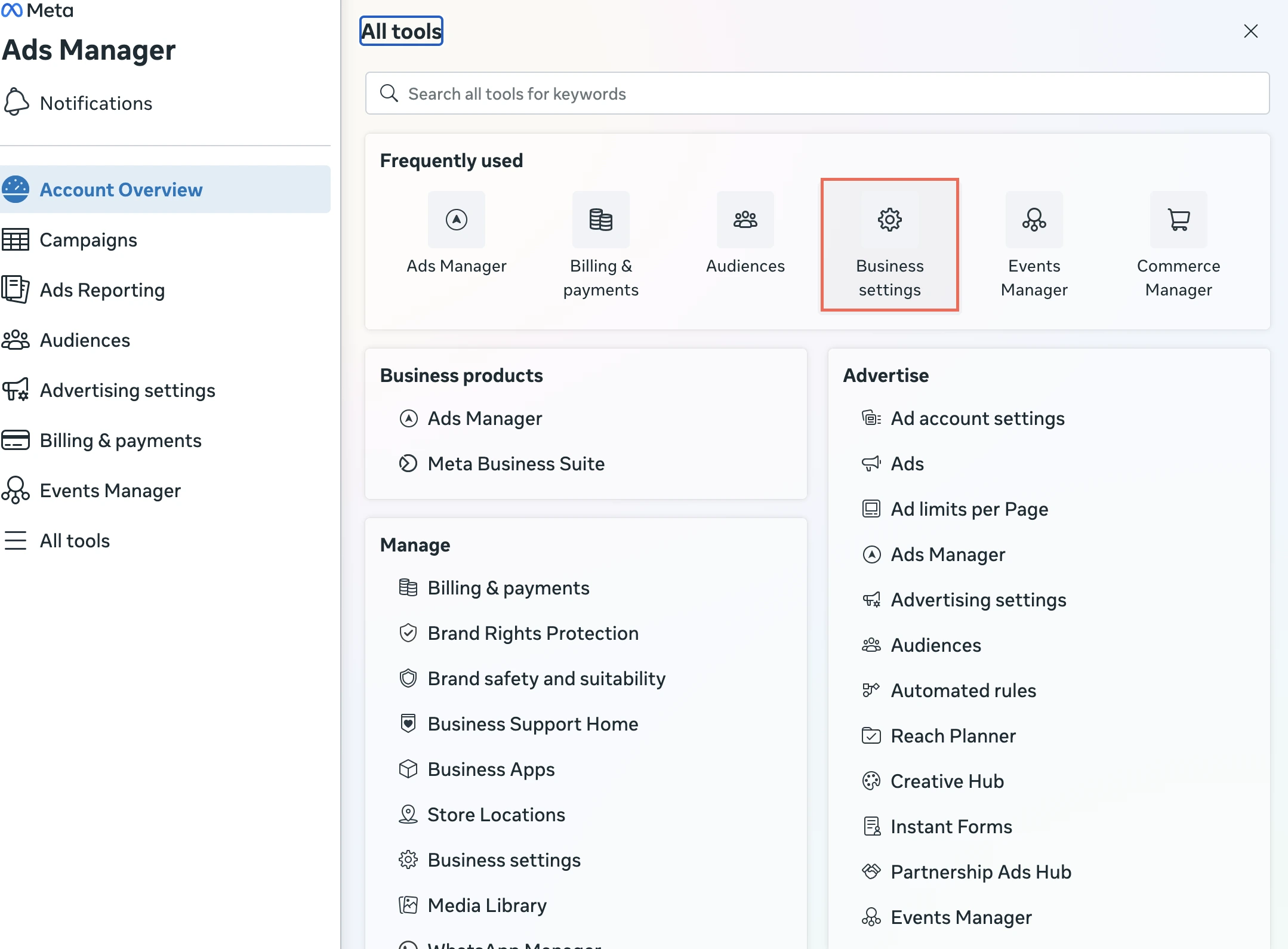
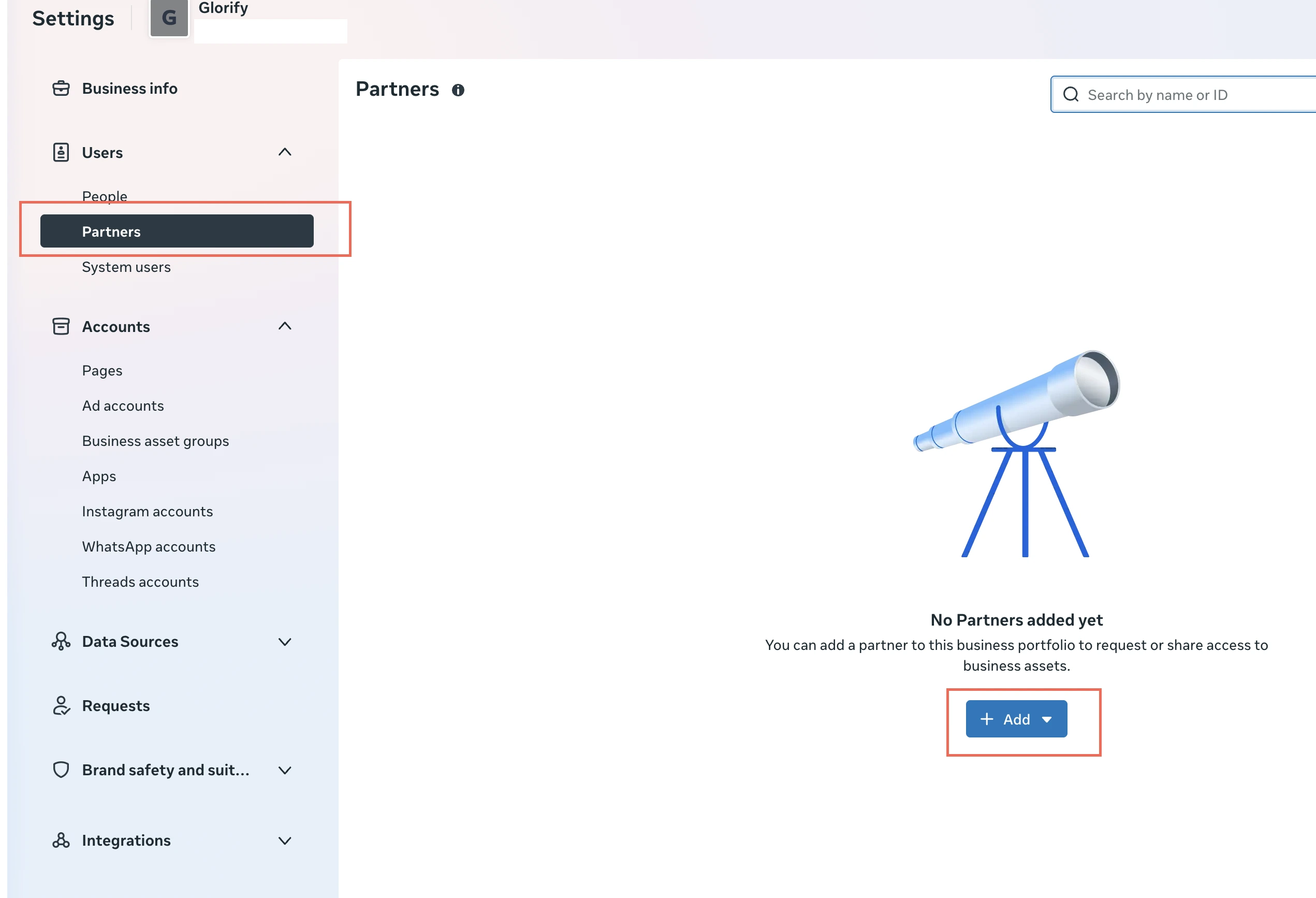
- Under Users, click Partners, then Add.
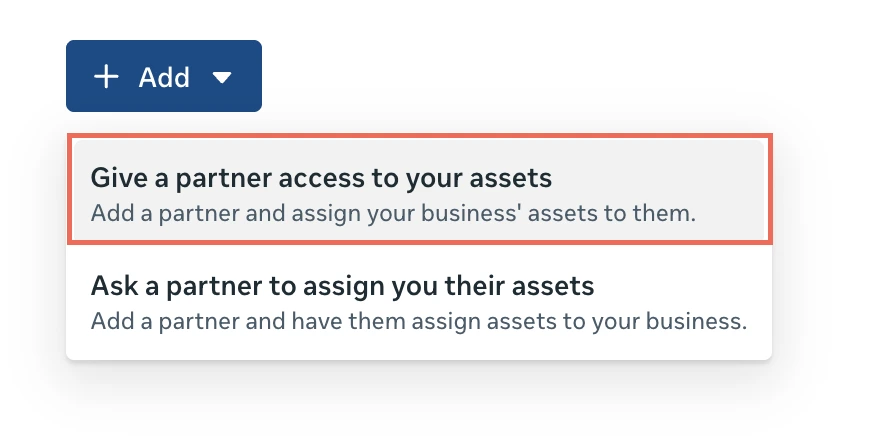
- Select Give a partner access to your assets.
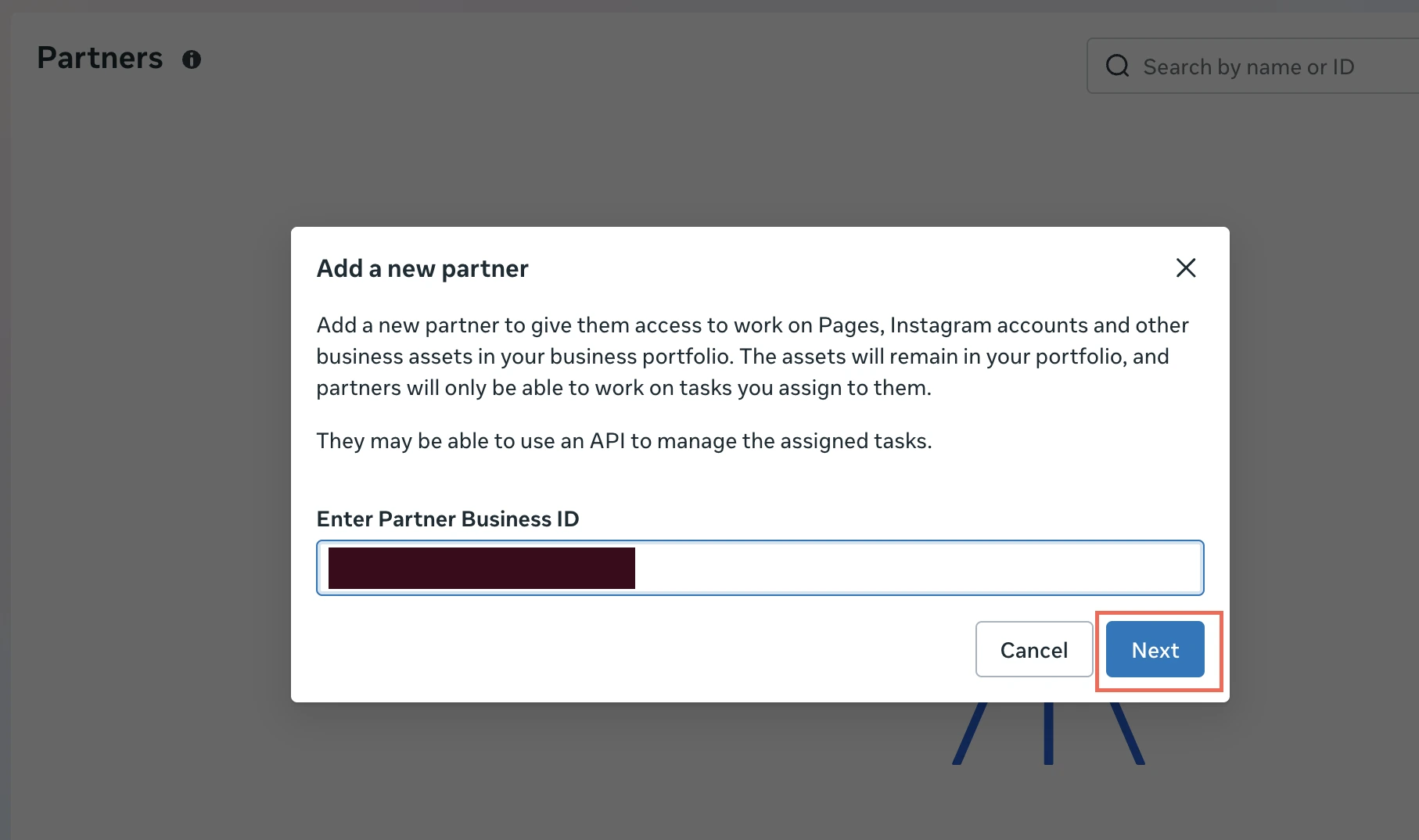
- Enter the Analytics Mates Business Portfolio ID, then Next.
- Select only the assets in the project. Depending on scope, that may include:
- Facebook Page
- Instagram account
- Ad account
- Dataset / Meta Pixel (confirm the ID matches the live campaigns)
- Catalog
- Verified domain
- Assign permissions on each asset.
Recommended access: partial access on the required assets. For measurement work that usually means viewing Page/Instagram insights, viewing ad performance, and viewing or managing the Pixel / dataset (Events Manager diagnostics, including Event Match Quality). Grant campaign management only if it is in the project. Grant full control only when we must manage permissions or integrations.
- Save. We should appear under Partners. Email us when it is done so we can confirm the ad account and the dataset ID match the live campaigns.
If Events Manager sits under a different Business Portfolio than the ad account, add us there too and send both IDs.
After the invitations go out, tell us which access levels you granted. We will confirm we can open:
- The correct GA4 property
- The correct GTM account and web container
- The Google tag on that site’s GA4 data stream
- The correct Search Console property
- The correct Bing Webmaster Tools site
- The Microsoft Advertising account (if in scope)
- The Google Ads customer account (if in scope)
- The Meta Business Portfolio, ad account, and dataset (if in scope)
If something is missing, we will tell you which permission to change. You can remove access later from the same user-management, account-link, or partner screens.
We start with the properties you granted. We do not go looking for accounts you did not invite us to.
If you would rather walk through this on a call, book a consultation.
Keep reading
- Black Friday 2026: What's New in GA4, GTM, and Marketing Measurement?
Audit GA4 and GTM before Black Friday 2026. Validate purchase values, then review Google’s tagging and Ads updates. A new feature does not fix a broken purchase event.
- How to Build an AI Search Visibility Dashboard in Looker Studio
Learn how to build an AI Search Visibility Dashboard in Looker Studio using GA4, Google Search Console, Bing Webmaster Tools, and curated query sets. Discover how to track conversational search behavior, AI-aligned visibility trends, and meaningful discovery signals without overcomplicating reporting.
- Mastering GA4 & GTM for Magento – Smarter Event Tracking with AI
Learn how to set up GA4 + GTM on Magento with smarter event tracking powered by AI. Follow step-by-step setup, track key ecommerce actions, spot missing events, and avoid common pitfalls like duplicates or misfires to ensure accurate insights and stronger funnel optimization.
Work with us
Need this done for your property?
Analytics Mates handles GA4 setup, GTM implementation, Looker Studio dashboards, and the ongoing measurement operations that agencies and in-house teams don't have bandwidth for.